Item Descriptions:
«Features»
● Easy setting of shortcut keys !! Because simultaneous press shortcuts can also be set, troublesome operation with feet one shot is also easy!
● Easy operation ends work even crisply! Foot pedal is perfect for games!
● Programmer · Data entry · Writer · Designer · DTP · Accountant · Tape raising · Dentist · Gamer · Tendosynovitis · Medical site · factory etc.
● Example of use: By setting a line feed key on the foot switch, you can start a line with a foot switch without releasing your hand from the keyboard.
● Accessory: main unit (with USB cable), software 8 cm CD-ROM (English / Chinese display), English manual
● Supported OS: Windows XP / Vista / 7/8/10
* For Mac, although the software recognizes the foot switch, the software does not correspond.
The left foot switch "1", the middle foot switch "2", and the right foot switch "3" are displayed by default.
«Software Manual»
1 Connect the USB cable of the product to the computer.
2 Insert the included CD-ROM into the drive of the computer and copy the folder to the desired location on the PC.
3 Double-click the application file.
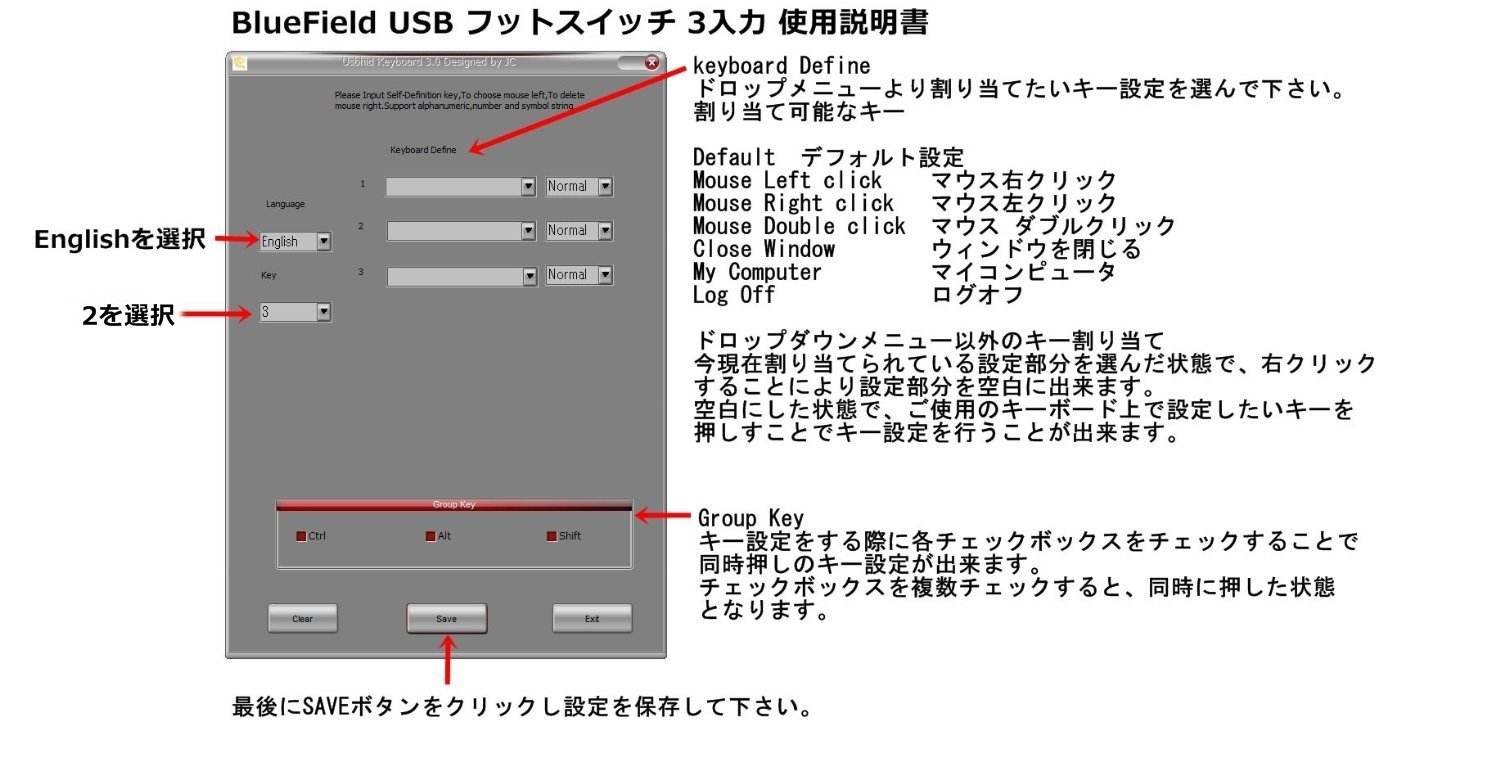
4 Select the display language as English.
Please select 2 in the 5 KEY column.
6 Allocate the key setting that you want to correspond to each foot switch (numbered 1, 2, 3 from the left foot switch).
7 Click SAVE to save the settings.
Key setting that can be set from software drop down
Default
Mouse left click
Right mouse click
Mouse double click
close the window
My computer
log off
Ctrl button
Alt button
Shift button
Key assignment setting other than drop down menu
With the currently assigned key setting part selected, right click to set the setting part to blank.
If you press the key you want to set on your keyboard, leave the key setting blank in the blank area.
Software download site
http://c6120.xsrv.jp/download/usb-footswitch.zip
Virus checked
Features:
- Please enter model number Confirm this is compatible:
- Supported OS: Windows XP / Vista / 7/8/10
- Accessory: Main unit (with 2 mUSB cable), Software CD-ROM (8 cm), English manual
- For detailed key setting method please see the product introduction below
Product information:
Shipping Weight: 721 g
Package Dimensions: 5.00 x 16.99 x 23.19 cm
Customer reviews from Japan:

 I can use it.
In the box of products there were no instructional manuals or similar paper. I attempted to set using software downloaded from the homepage without using the supplied CD, but I can not allocate keys. I tried it in safe mode by referring to this review, but I still can not set the key. I tried to do it on another computer and I put the software in the USB memory. I thought so, I started up the software from the USB memory that I had put on the PC, and I set the key, I could set it safely. I do not know why, but I can use it for the time being. The body is solidly made and I feel it is better than I thought.
It works without problems
I set it up using a screwdriver and operated it. I thought that the problem would almost certainly happen, so I was beaten by the goodness.
Can not coexist with USB keyboard or USB mouse?
Making is very solid. It does not look like what I can buy at this price very much. I use it in an environment with windows7 64 bit, but when I used it with a USB keyboard or USB mouse, the operation was unstable impression, so both the keyboard and mouse are moving very stably when switching to PS 2.
If you do not recognize the connection in safe mode or other PC
We connected in Windows 10 64bit environment but at first it was impossible to set with attached software as the other one's review. Even if software linked to the item description on this page did not recognize, even if other peripheral devices were removed, I was not sure what was interfering, so I tried it in safe mode and I set it even outside of safe mode We are operating normally. Although it is written also by customer Q & A, it is settled once it is memorized on the main body side and it moves well according to that setting even if it connects to other PC etc (in my environment checking the operation of the smartphone) If you do not go, we recommend trying it in safe mode or trying out with just other settings on another PC. For the product itself, when the push switch is about 35 mm in height and trying to operate with a toe a little force is needed but if it is a heel it is a repulsive force that can be completely pressed by its own weight. So I think that it is better to have ingenuity, such as stepping on the place of foot. In addition, the left side reacts even with a slight step, while the right does not respond if the stepping is not deep, etc. Press reactions are different on the right and left, probably many variations from item to product. Just basically do not stepping down to the end and will react, so if you pinch something in the depressed part, I think that it will be easier to turn on the press. Although there is anxiety about the deterioration of the inside and cords in price, the pedestal seemed to be not easily broken in appearance due to metal because the pedestal is made of plastic with a thickness of about 4 mm. Currently I use it as an auxiliary for shortcuts in illustration and manga work, but it is functioning almost as ideal, I think that it is a bad product if it is considered as a cheap and expensive accessory.
I am using Windows 7 64 bit environment
Setting software, this product can be used properly (USB connection with both keyboard and mouse). It is a thing to operate with the foot, so you can understand that the spring is strong so that it is not too sensitive, but there is a time when the back of the main body rises when stepping on the front with the strength of the spring. I wish I could weaken the spring a bit more, set it to start stepping on the part where the switch works or heavy the main body. Or it might have been good to step on the back side with the fulcrum in front (the foot switch that used before was such a thing). I am using it for a while, but it is strong enough to have no signs of break.
SHIPPING METHOD
Delivered directly from Japan by Japan Post. It will take 3 to 5 business days to prepare the order for shipping. We guarantee careful packing and safe shipping.Please note that in some cases additional import or VAT charges may incur and have to be borne by the client.
1. Japanpost registered mail
Shipment by Japanpost Registered Mail (Standard). Trackable any time with tracking number. Insurance is not available. Delivery time usually is between 1-3 weeks from the date of dispatch. Some items are not eligible for Standard Shipping.
2. Qxpress Standard
Shipment by Qxpress standard service. Trackable at any time with tracking number. Registered and insured up to a value of item price and shipping fees.Delivery time is usually between 5-10 business days from the date of dispatch.
3. EMS
Shipment by Expedited Mail Service. Trackable at any time with tracking number. Registered and insured up to a value of $200 and usually delivered in 2-6 business day from the date of dispatch.

| Japanpost registered mail | Qexpress | EMS | |
|---|---|---|---|
| Shipping Method | Japanpost Registered Mail (Standard) | Standard Qexpress | EMS (Expedited Mail Service) |
| Trackable | Yes | Yes | Yes |
| Insured | N/A | Yes (Up to item price and shipping fees) | Yes (Up to $200.00) |
| Asia | 1-3 weeks | 5-10 days | 2-5 days |
| Oceania; North America; Central America and the Middle East | 2-4 weeks | 6-14 days | 2-6 days |
| Europe | 2-4 weeks | 6-16 days | 3-8 days |
| South America and Africa | 2-4 weeks | 10-18 days | 4-8 days |
NOTICE:
- For overseas delivery, please be aware that damage to the outer box can be seen.
- If you would like to avoid as much damage as possible, please choose the EMS shipping method.
"According to Qoo10 guide line,overseas shipping fees will be charged to you extra if you choose Qxpress standard shipping.We recommend you to compare the total price of your purchase with EMS."
