


?
 |
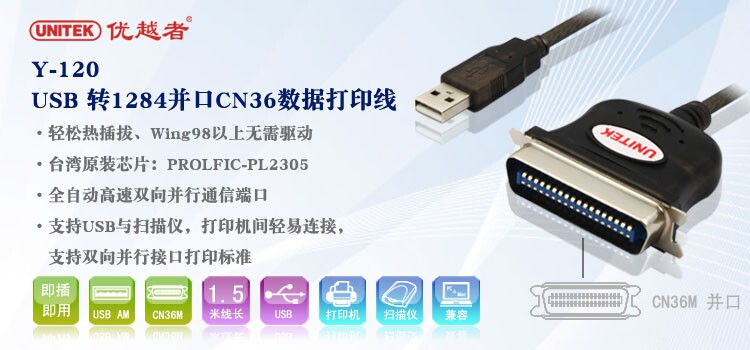
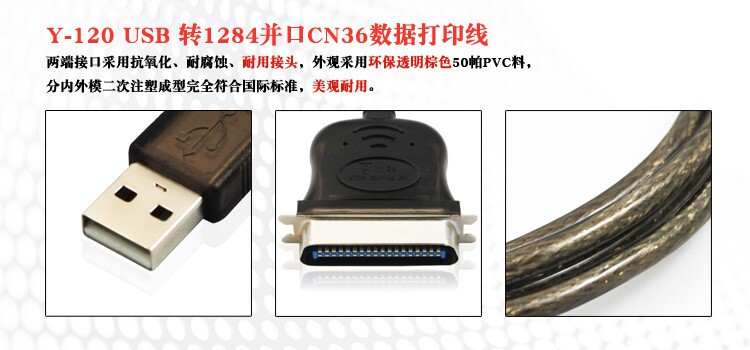
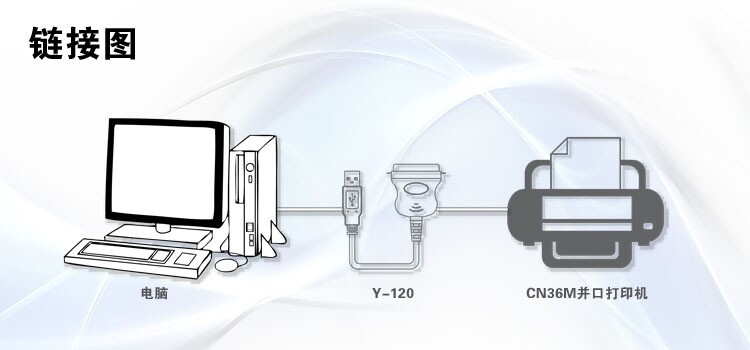
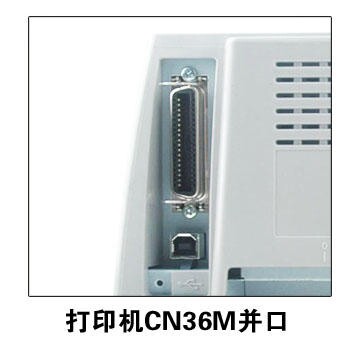
| Y-120 USB to 1284 parallel CN36 data printing line 1.5 meters The superior Y-120 product is a USB to parallel port (CN36) data print line, is designed for parallel printer and high-speed conversion cable, through the conversion line parallel port printer directly with the computer's USB interface. | 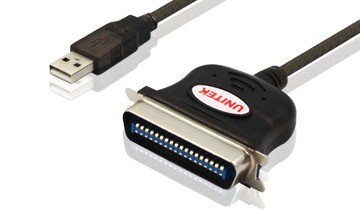 |
 |
 |
 |
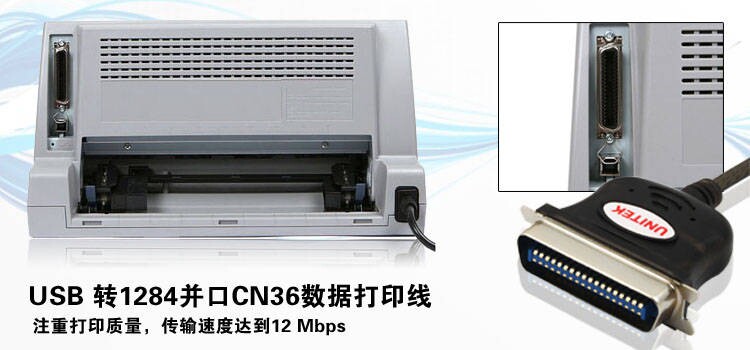 |
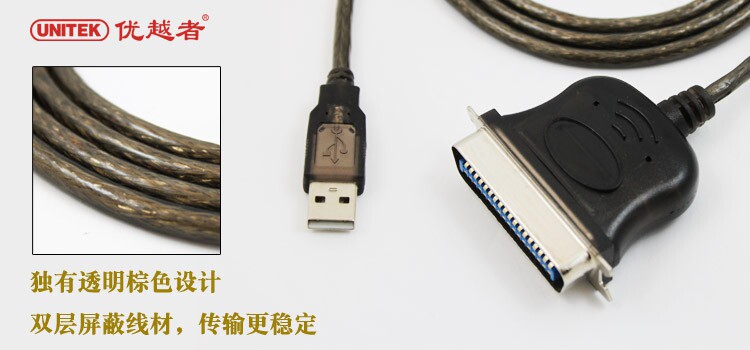
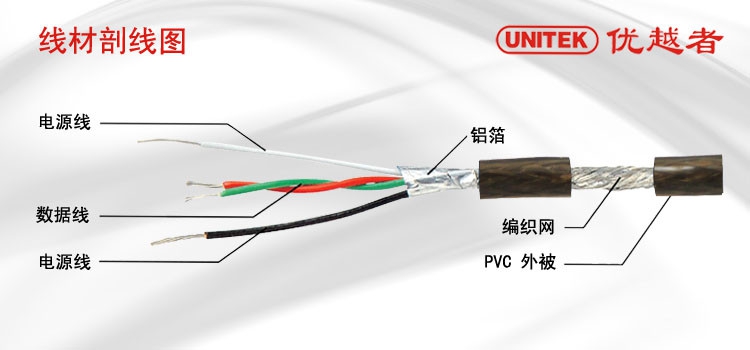
USB转并行端口(CN36)转接器是针对并口打印机而设计的高速转换转接线。它适合于笔记本和台式机,通过转接线,实现并口打印机直接与电脑USB接口通信。打印速度大大提高,支持USB口热插拔,使用非常方便。高速USB1.1支持USB全速传送,支持各类型并口打印机,支持双向并行接口打印标准。 ◆ 1.5米超长USB标准线,支持USB口热插拔,使用非常方便; ◆ 支持各类型并口打印机,支持双向并行接口打印标准; ◆ 全自动高速双向并行通信端口 ◆ USB总线直接取电,无需外接电源; ◆ 内置512Bytes缓存 ◆ 注重打印质量,传输速度达到12 Mbps. ◆ 此转接采用稳定强劲芯片,高屏蔽透明棕线材材料制造,抗干扰性能强,信号传输效果好 ◆ 支持USB与扫描仪,打印机间轻易连接,支持双向并行接口打印标准 ◆ 支持系统:Windows/XP/Vista/win7 USB to parallel port (CN36) adapter is designed for parallel printers and high-speed conversion cable. It is suitable for notebooks and desktops, through the adapter cable, parallel port printer to achieve direct communication with the computer USB interface. Print speed greatly improved support for USB hot-swappable, very easy to use. High-speed USB1.1 support USB full-speed transmission, support for all types of parallel printer, supports bidirectional parallel interface printing standard. ◆ 1.5 meters long USB standard line, support USB hot-swappable, very easy to use; ◆ support all types of parallel printer, support two-way parallel interface printing standard; ◆ Automatic high-speed bi-directional parallel communication port ◆ USB bus directly to take electricity, no external power supply; Built-in 512Bytes cache ◆ focus on print quality, transmission speed up to 12 Mbps. ◆ This switch adopts stable strong chip, high shielding transparent brown wire material, strong anti-interference performance, the signal transmission effect is good ◆ support USB and scanners, printers easily connected to support the two-way parallel interface printing standard ◆ support system: Windows / XP / Vista / win7 |
 |
 |
 |
 |
 |  |
 |  |
 |
| If the product can not be used can be checked as follows: The first step: you can re-plug the USB port, let the computer re-find the device; Step 2: Restart the power, re-automatically find; The third step: check the motherboard interface is normal; The fourth step: replacement method, try to other computers can not be used normally. | 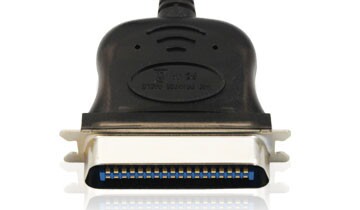 |
 |
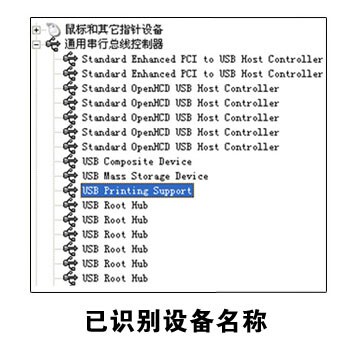
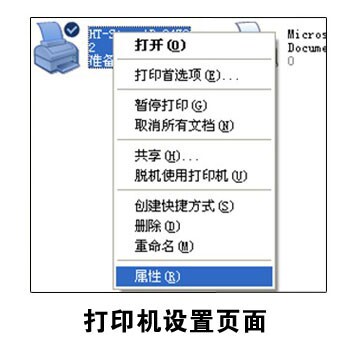
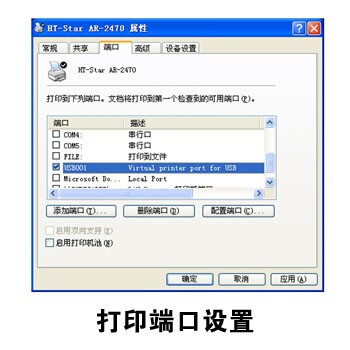
问:USB转1284打印线并口线需要驱动吗? 答:除Windows98系统需要安装驱动程序外,其它系统不需要,系统自动安装, 问:USB转1284打印线并口线识别的端口是什么,该端口需要设置吗? 答:产品识别的端口为USB端口如:USB001,USB002......(此项设置,根据USB连接的端口选择) 端口:USB001 描述:Virtual printer port for USB 问:USB转1284打印线并口线支持加密狗吗? 答:该产品不支持加密狗. 问:产品与打印机连接后,打印机不能工作。 答:产品连接打印机后,需要安装打印机驱动程序,并在打印机端口项中,设置打印机的端口并确定。 问:我买了一条USB转1284打印线并口,可以用在其它设备上吗? 答:这条线只能用于打印机。 问:Y-120产品可以识别LPT端口吗? 答:该产品只能识别USB端口。如设备需要LPT端口,请使用我司的Y-107产品。 问:Y-120产品按说明书的步骤设置好后,还是不能使用? 答:出现此情况,是打印机不能与产品兼容,所以打印机不能使用。详见打印机支持型号表, 问:USB 转 CN36 产品是线长度多少,什么颜色? 答:Y-120 USB 转 CN36 产品透明棕,线长1.5米 问:该产品支持的操作系统,配光盘吗? 答:产品不配光盘,Windows 98以上系统免驱动程序安装。 系统支持:win98SE/ME/2000/XP/Server 2003,2008/Vista/7(32 !#!amp!*! 64 bit)Q: USB to 1284 print line parallel lines need to drive it? A: In addition to Windows98 system needs to install the driver, the other systems do not need, the system automatically installs, Q: USB to 1284 print line parallel port line identification is what the port needs to be set? A: The product identification of the port for the USB port such as: USB001, USB002 ...... (This setting, according to the USB connection port selection) Port: USB001 Description: Virtual printer port for USB Q: USB to 1284 print line parallel port line to support dongle? A: The product does not support dongle. Q: The printer does not work when the product is connected to the printer. A: After the product is connected to the printer, you need to install the printer driver, and in the printer port item, set the printer's port and determine. Q: I bought a USB to 1284 print line parallel port, can be used in other equipment? A: This line can only be used for printers. Q: Does the Y-120 product recognize the LPT port? A: The product only recognizes the USB port. If the device requires LPT port, please use our Y-107 product. Q: Y-120 products according to the instructions of the steps set, or can not be used? A: In this case, the printer can not be compatible with the product, so the printer can not be used. See the printer support model table, Q: USB to CN36 product is the length of the number of lines, what color? A: Y-120 USB to CN36 transparent brown, the length of 1.5 meters Q: Does the product support an operating system with CDs? A: The product does not deserve CD, Windows 98 and above system driver-free installation. System support: Win98SE / ME / 2000 / XP / Server 2003, 2008 / Vista / 7 (32 !#!amp!*! 64 bit) |
Y-120 在Windows XP以上系统使用不需要安装驱动程序,无驱便可使用。如果发现不能正常使用打印机设备,请检查打印设备是否在产品支持列表内,还可请联系我司客服为你服务:0755-27172746 因市面打印机品牌、型号很多在此不一一列举,支持型号有: HP DeskJet DeskJet 420,DeskJet 500C,DeskJet520C DeskJet 670C DeskJet 692C,DeskJet 695C,DeskJet 710C,DeskJet 750C DeskJet 850C,DeskJet 870C,DeskJet 890C,DeskJet 895 DeskJet 1100C,DeskJet 1120C HP LaserJet LaserJet Ⅲ P,LaserJet4,LaserJet 4PLUS,LaserJet 4P LaserJet 4L,LaserJet 4V,LaserJet 5P,LaserJet 5L LaserJet 5M,LaserJet 6P,LaserJet 6L,LaserJet1100A LaserJet2000c,LaserJet 2100M,LaserJet 4000,LaserJet 5000 Canon BJC BJC-30,BJC-50,BJC-70,BJC-80,BJC-200,BJC200eX BJC-210,BJC-210SP,BJC-230,BJC-240,BJC-250 BJC-255sp,BJC-4000,BJC-4100,BJC-4200sp BJC-4300,BJC 4650,BJC-6000,BJC 7000 Epson Stylus Stylus Color 300,Stylus Color 400,Stylus Color 440,Stylus C4 Stylus Color 600,Stylus Color 740,Stylus Color 800 Stylus Color 850,Stylus Photo 700,Stylus Photo EX,Stylus Photo 790,Stylus Photo 810 Epson PM PM-700C,PM-750C,PM-2000C Epson EPL EPL-N1600,LQ-300K,LQ-300K+ Lexmark XJ-350,1100,Z11 Panasonic KX-1121 Y-120 in Windows XP and above systems do not need to install the driver, no drive can be used. If you find that you can not normally use the printer device, check the print device is in the product support list, please contact our customer service for you: 0755-27172746 Because of the market printer brand, many models do not enumerate in this, support models are: HP DeskJet DeskJet 420, DeskJet 500C, DeskJet 520C DeskJet 670C DeskJet 692C, DeskJet 695C, DeskJet 710C, DeskJet 750C DeskJet 850C, DeskJet 870C, DeskJet 890C, DeskJet 895 DeskJet 1100C, DeskJet 1120C HP LaserJet LaserJet III P, LaserJet 4, LaserJet 4PLUS, LaserJet 4P LaserJet 4L, LaserJet 4V, LaserJet 5P, LaserJet 5L LaserJet 5M, LaserJet 6P, LaserJet 6L, LaserJet 1100A LaserJet 2100c, LaserJet 2100M, LaserJet 4000, LaserJet 5000 Canon BJC BJC-30, BJC-50, BJC-70, BJC-80, BJC-200, BJC200eX BJC-210, BJC-210SP, BJC-230, BJC-240, BJC-250 BJC-255sp, BJC-4000, BJC-4100, BJC-4200sp BJC-4300, BJC 4650, BJC-6000, BJC 7000 Epson Stylus Stylus Color 300, Stylus Color 400, Stylus Color 440, Stylus C4 Stylus Color 600, Stylus Color 740, Stylus Color 800 Stylus Color 850, Stylus Photo 700, Stylus Photo EX, Stylus Photo 790, Stylus Photo 810 Epson PM PM-700C, PM-750C, PM-2000C Epson EPL EPL-N1600, LQ-300K, LQ-300K + Lexmark XJ-350, 1100, Z11 Panasonic KX-1121 Y-120 in Windows XP and above systems do not need to install the driver, no drive can be used. If you find that you can not normally use the printer device, check the print device is in the product support list, please contact our customer service for you: 0755-27172746 Because of the market printer brand, many models do not enumerate in this, support models are: HP DeskJet DeskJet 420, DeskJet 500C, DeskJet 520C DeskJet 670C DeskJet 692C, DeskJet 695C, DeskJet 710C, DeskJet 750C DeskJet 850C, DeskJet 870C, DeskJet 890C, DeskJet 895 DeskJet 1100C, DeskJet 1120C HP LaserJet LaserJet III P, LaserJet 4, LaserJet 4PLUS, LaserJet 4P LaserJet 4L, LaserJet 4V, LaserJet 5P, LaserJet 5L LaserJet 5M, LaserJet 6P, LaserJet 6L, LaserJet 1100A LaserJet 2100c, LaserJet 2100M, LaserJet 4000, LaserJet 5000 Canon BJC BJC-30, BJC-50, BJC-70, BJC-80, BJC-200, BJC200eX BJC-210, BJC-210SP, BJC-230, BJC-240, BJC-250 BJC-255sp, BJC-4000, BJC-4100, BJC-4200sp BJC-4300, BJC 4650, BJC-6000, BJC 7000 Epson Stylus Stylus Color 300, Stylus Color 400, Stylus Color 440, Stylus C4 Stylus Color 600, Stylus Color 740, Stylus Color 800 Stylus Color 850, Stylus Photo 700, Stylus Photo EX, Stylus Photo 790, Stylus Photo 810 Epson PM PM-700C, PM-750C, PM-2000C Epson EPL EPL-N1600, LQ-300K, LQ-300K + Lexmark XJ-350, 1100, Z11 Panasonic KX-1121 |