
Key Features
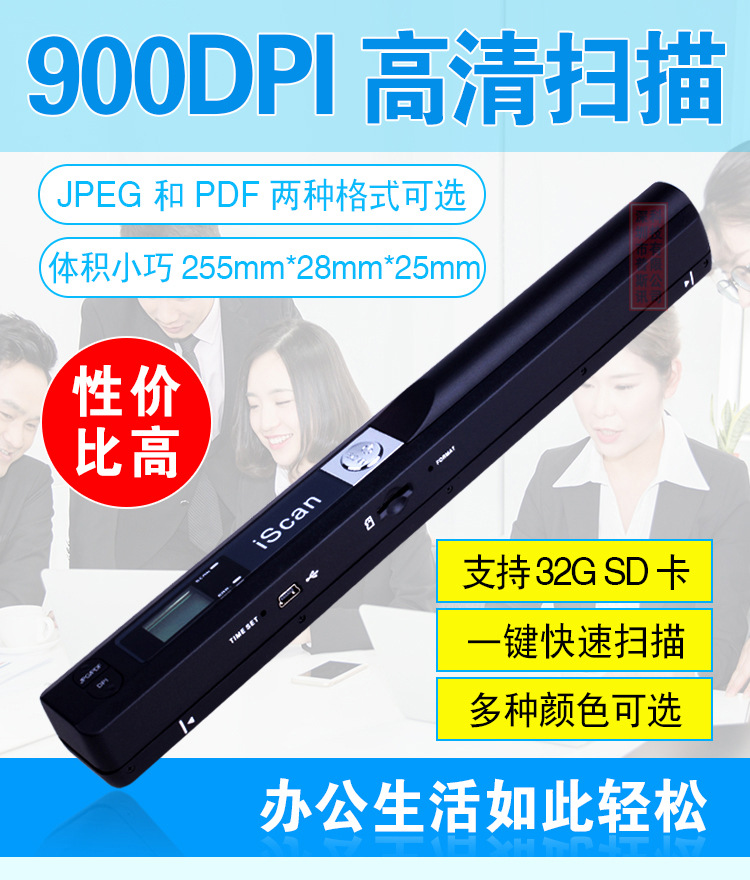
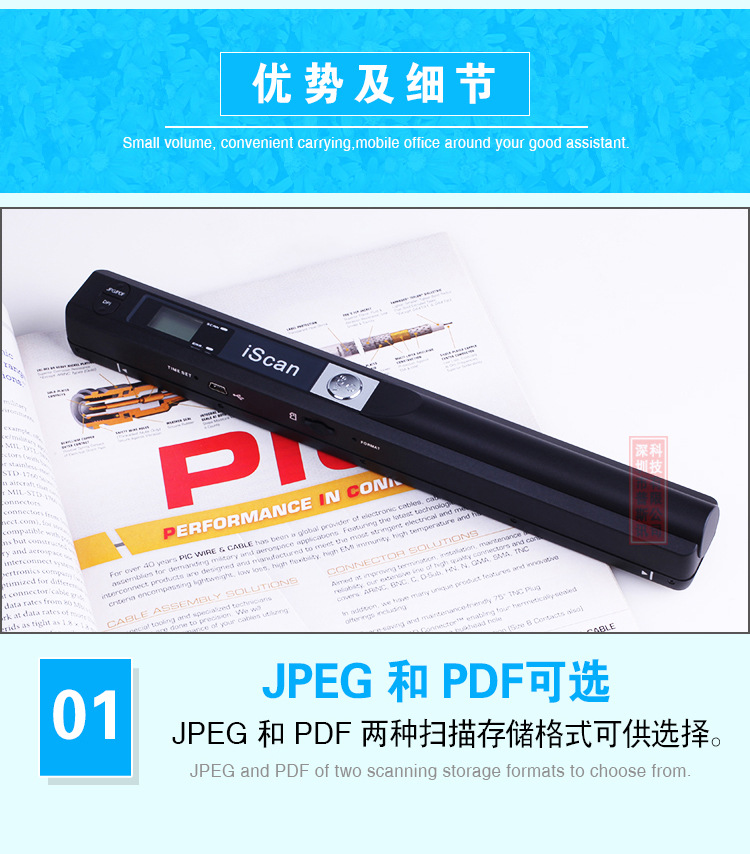
*JPEG PDF-A4 or PDF-Letter scan-format selection.
*Color or Mono scan-color selection.
*Scanning resolutions:300/600/1050 DPI selection
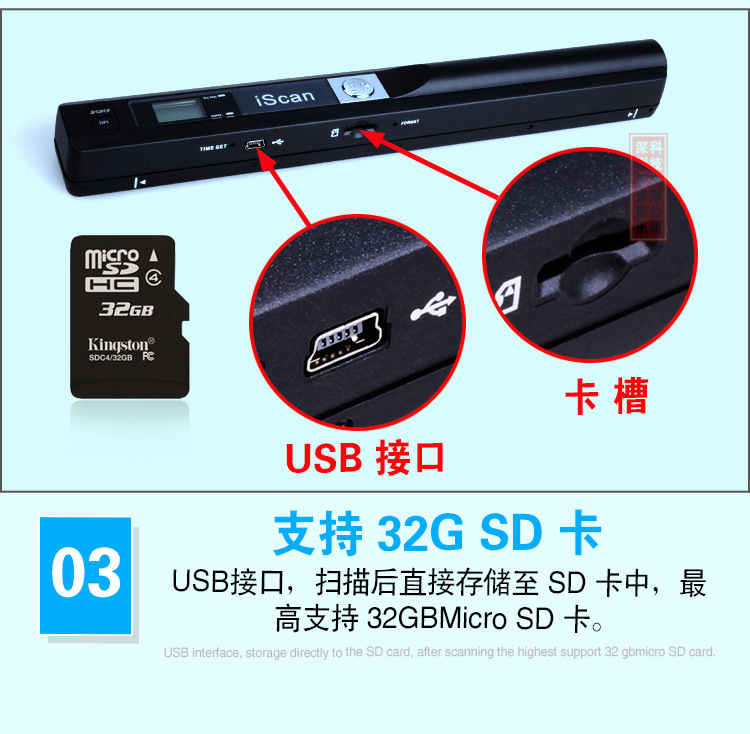
*Directly save JPG(JPEG)/PDF files to the Micro SD card.
*Supports Micro SD card of up to 32GB
*Color display to playback the scanned images.
*Double Roller design, double roller drive scanning, Scan more stably.
*Built-in 700mAH Lithium-Polymer battery.
*Book edge design, get all the book content.
*Wireless design, scan picture anywhere and anytime
*Driver free to download for MS Windows 8/7/Vista/XP and MacOS10.4 or above
(direct plug-in, driver installation not required)
*WIFI function is optional, download the picture to PC, iPhone, iPad, or android Mobile device is available by Wi-Fi.
The scanner not included MicroSD CARD.
Component:
| component | function |
| Resolution | Low resolution : 300x300 dpi,High resolution:600x600 dpi,Fine resolution:1050x1050 dpi |
| Scanning Speed | Mono Low resolution: 2.0 Seconds,Color Low resolution:3.0 Seconds,Mono High resolution:6.0 Seconds,Color High resolution:8.0 Seconds,Color Fine resolution:12 Seconds |
| Mono Fine resolution: | 10 Seconds, |
| Capacity (Based on 1GB MicroSD card) | Mono Low resolution:1200pcs,Color Low resolution:1000pcs,Mono High resolution:600pcs,Color High resolution:550pcs,Mono Fine resolution:150pcs,Color Fine resolution 140pcs |
| Image sensor | A4 Color Contact Image Sensor |
| Scanner photo size | A4,A5,5R,4R,3R and below |
| Scan width | 216mm |
| Scan length | 300DPI:125"(max);600DPI:60";(max);1050DPI:50"(max) |
| File format | JPEG(Default)/PDF |
| LCD | 480*320 HD TFT LCD |
| Dimensions (L*W*H) mm | 266*39*28 |
| Auto power off | 3 Minutes |
| USB port | USB 2.0 high speed |
| Power Source | Built-in 820mAH Lithium-Polymer |
| Auto power off | 3 Minutes |
| Battery Life | >=400 piece (A4 paper default, Low resolution with color) |
| External memory | Micro SD Card |
| Charge time | 2 hours |
| Charge type | USB or 5V DC power |
| Support system | Driver free to download for Windows 2000 or above, Mac10.4 or above, IOS, Android |
Fucntion Parts:
Notice: At any time, the ICON will display the most closed KEY function.
| Power /SCAN | Power On/ Off: Press and hold this key for 3 seconds to turn power on or off.>In home page,press this button to start scanning, press this button again to stop scanning.>In other page, press this key return to home page |
| Menu Key | >Press this button to enter Setup mode.>In Playback mode: Press this button to enter the single file delete mode.>When zooming in under Playback mode: press this button to shift the functions of UP/Down between LEFT/RIGHT. |
| Playback | >Press this button to enter Playback mode;>Press this button to return to the previous screen;>In Setup mode: Press this button to confirm exit Setup mode. |
| Up/Format | >Press the key, will shift PDF JPG file format. The icon of the selected mode will be displayed on the LCD screen.>In Setup mode: Press this button to move up the selection bar.>In Playback mode: Press this button to preview the former image.When zooming in under Playback mode: press it to move to the upper/left portion of the image. |
| Down/DPI | >Press this button to select Low (300dpi), High(600dpi) or Fine (1050dpi) scan quality in DPI. The icon of the selected quality will be displayed on the LCD screen.>In Setup mode: Press this button to move down the selection bar.>In Playback mode: Press this button to preview the latter image.When zooming in under Playback mode: press it to move to the lower/right portion of the image. |
| Reset | Press to reset the scanner (Hardware reset) |
| SD Card | The Micro SD card storage location. |
| USB port | >Connect to a computer with the USB cable provided to view and transfer files, To charge up the built-in battery with an optional AC/DC power adapter |
| LCD | Scanning status display and preview the picture scanned in the SD card. |
| Indicator | >The red is lit when the battery is charging.>The green is lit when the battery is full. |
| Resolution | 1050DPI / 600DPI / 300DPI |
| Auto power off | 3 Minutes |
| USB port | USB 2.0 high speed |
| Power Source | Built-in 820mAH Lithium-Polymer |
| Power source | Rechargeable scanner, build in Li-polymer battery 820mAh |
How to Calibrate the Scanner
Note: If you found the scanned images are too dark or too bright, you may need to calibrate your scanner to normal status by following the below steps:
---Wipe off any dirt on the surface of the scanning lens with the clean cloth provided.
---Perform the calibration to adjust white balance following the Calibration Card.
How to connect your smart phone and tablet to the Scanner WI-FI? (optional Function)
1). Press the "Menu" key enter setup mode.
2).Select WiFi Link by the "Down" key.
3).When the WiFi is started up, the LCD screen will display WiFi
After you've activated the smart phone and tablet's Wi-Fi radio, you can connect to the scanner's wifi network.
The method can vary, depending on which type is your phone or tablet.
Scanner Wi-Fi features the scanner icon. Obey these steps to connect to the Scanner Wi-Fi network:
1). Click the Apps icon on the Home screen.
2). Open the Settings app.
3). Choose Wi-Fi.
4). The Wi-Fi settings icon appears.
5). Click the scanner icon from the network list on the screen.
6). After it connect successfully, open your web browser, and enter the address 192.168.10.1 in the
Web address field and hit return to reach the Wi-Fi's home page.
Package Included:
| 1X | 1050DPI A4 Document Wifi Portable Handheld Scanner free post |
| 1X | Instaler Software |
| 1X | Calibration Card |
| 1X | USB cable |
| 1X | Cleaning Tool |
| 1X | Nylon Bag |


