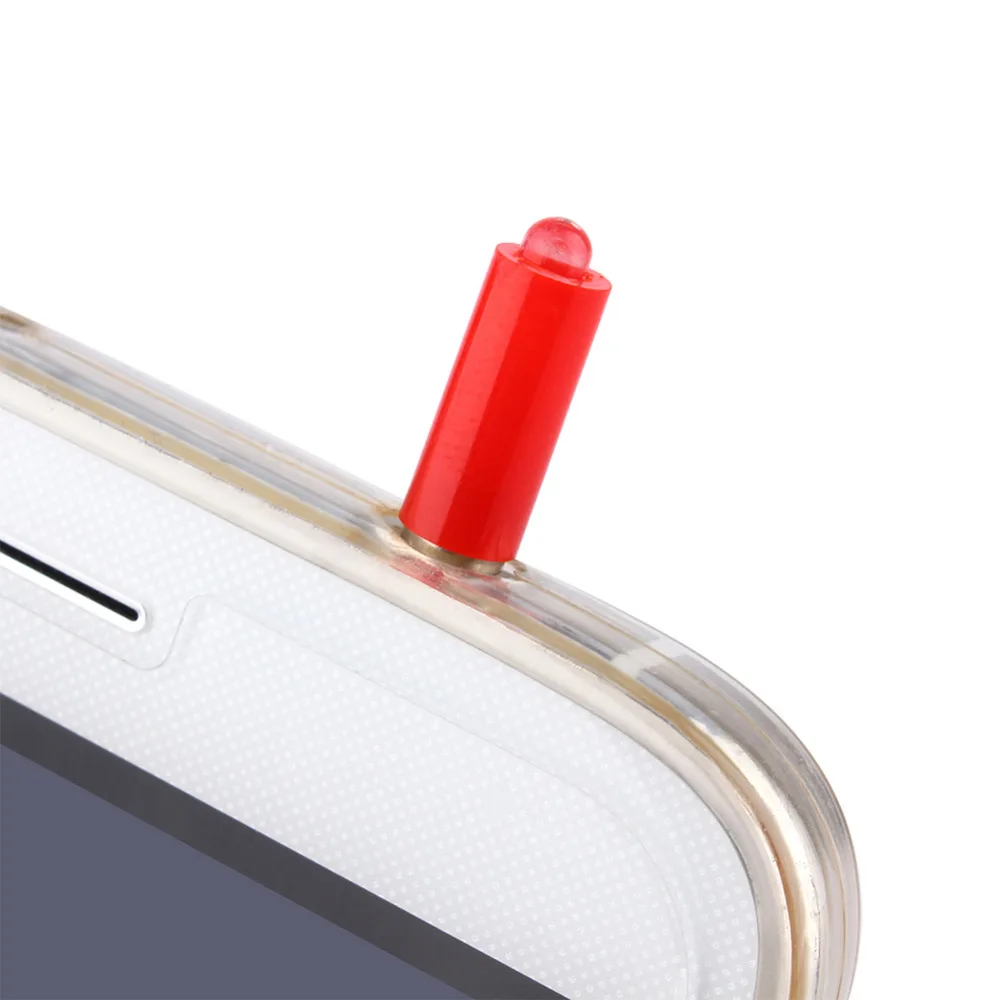
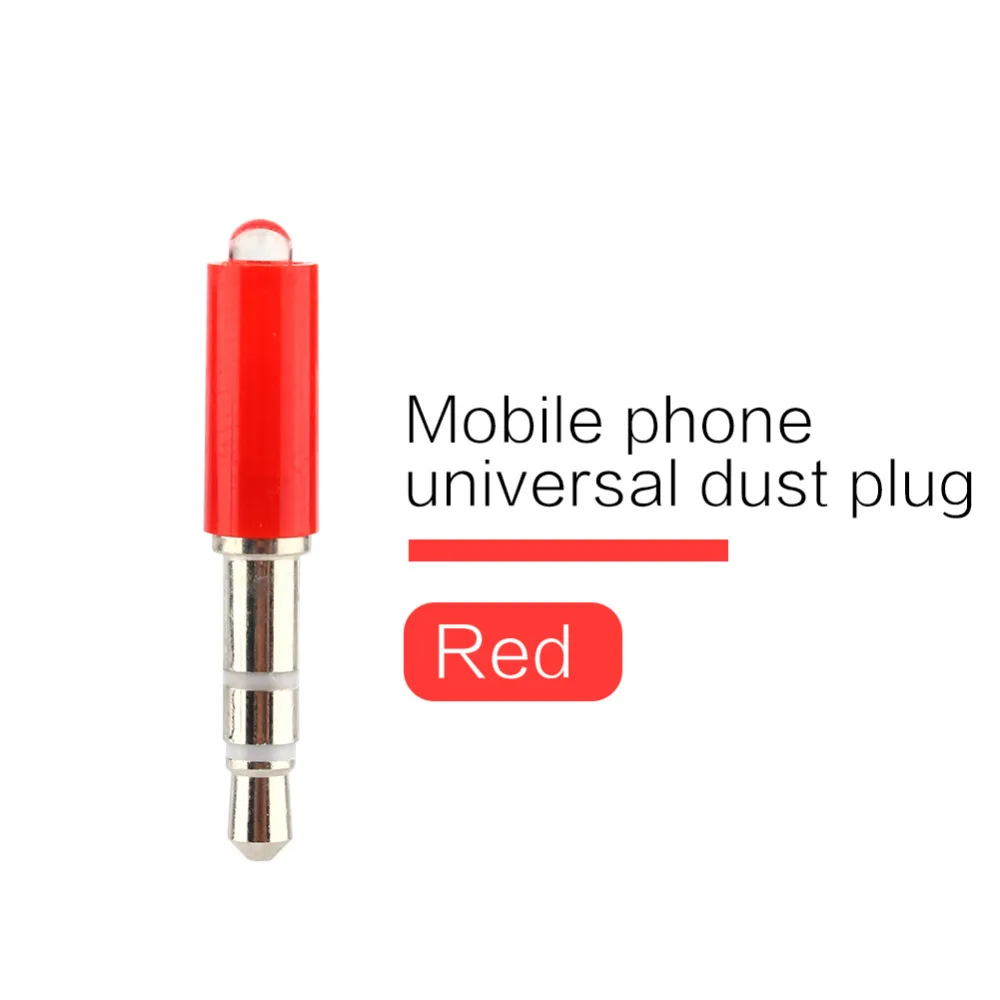
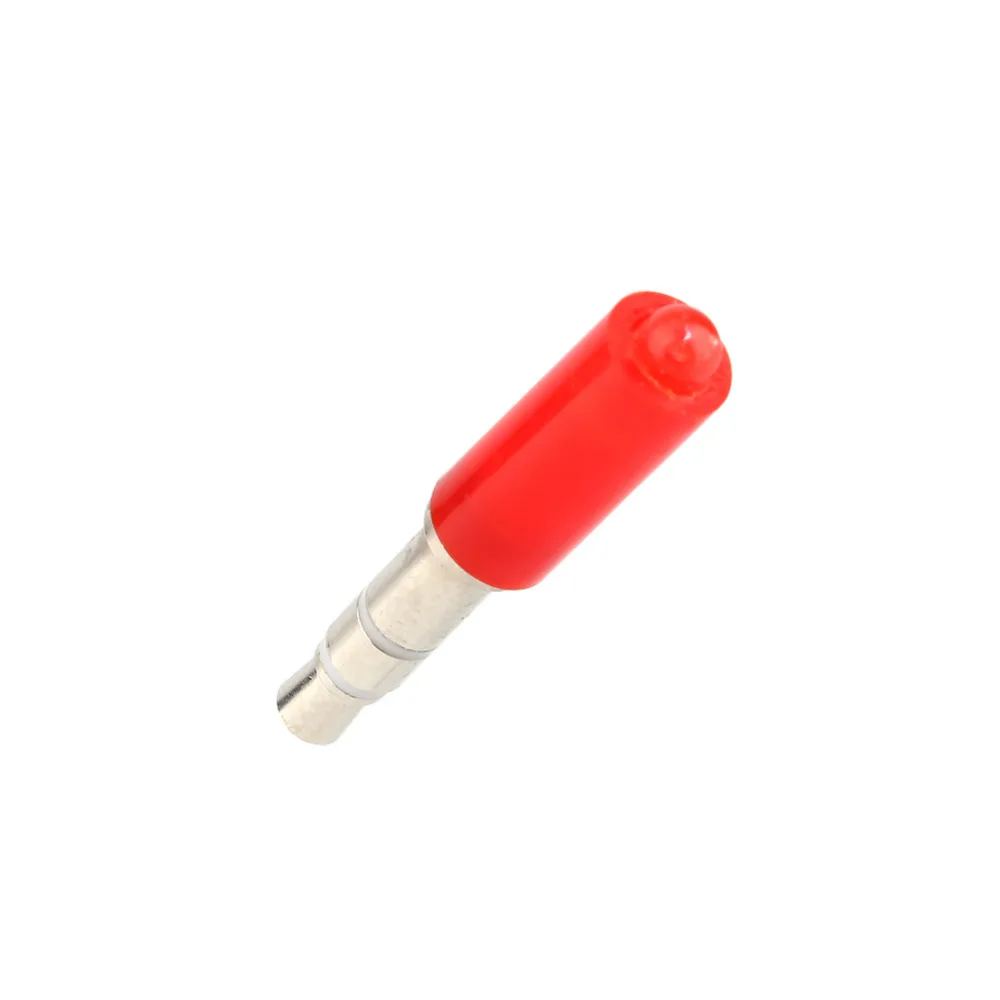
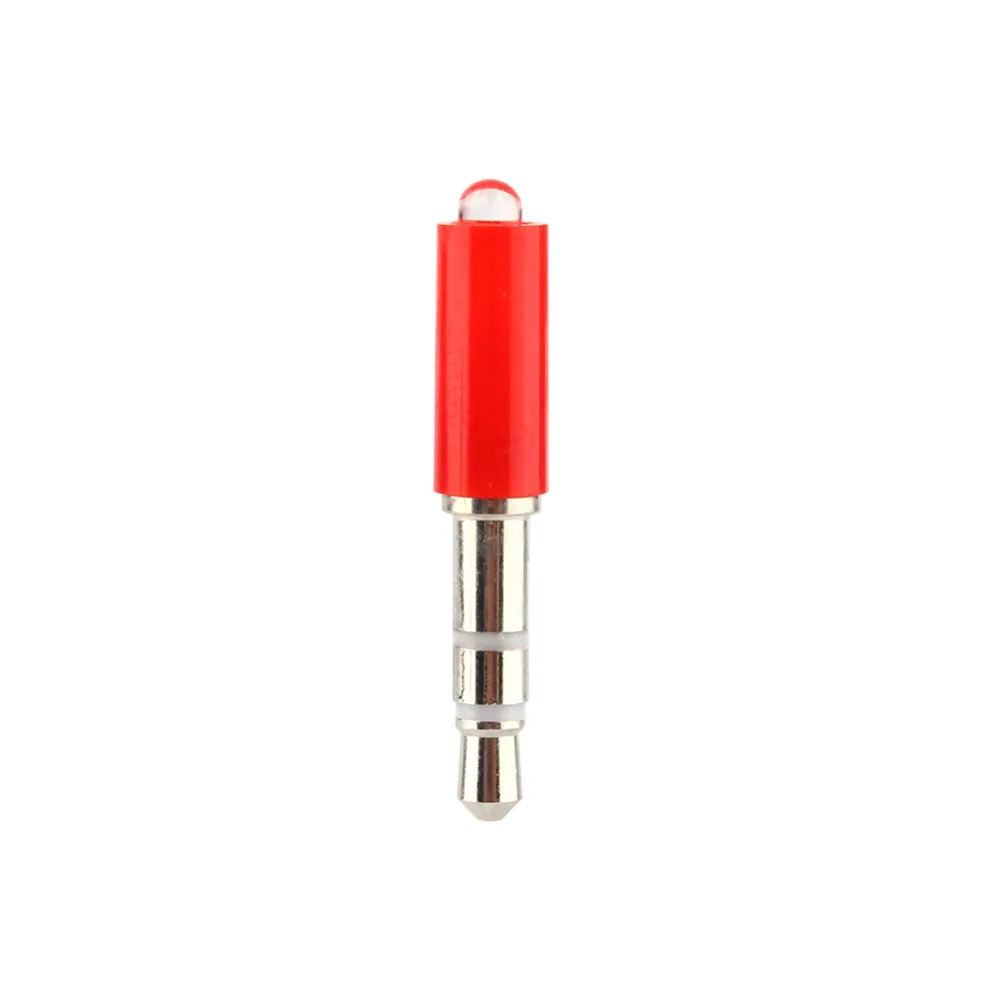
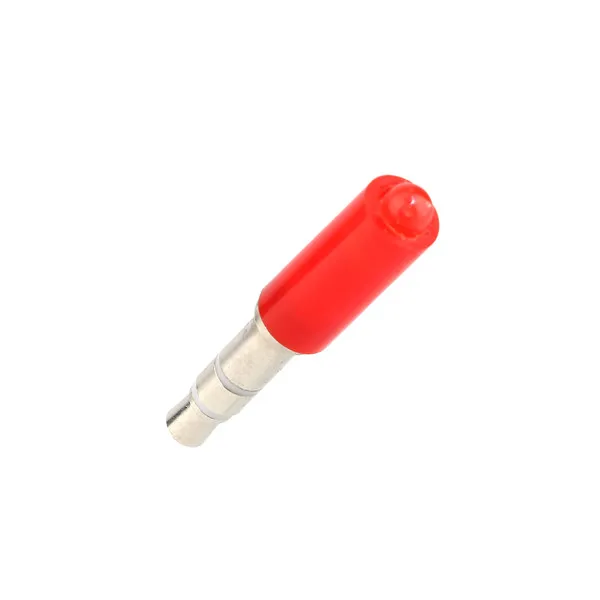
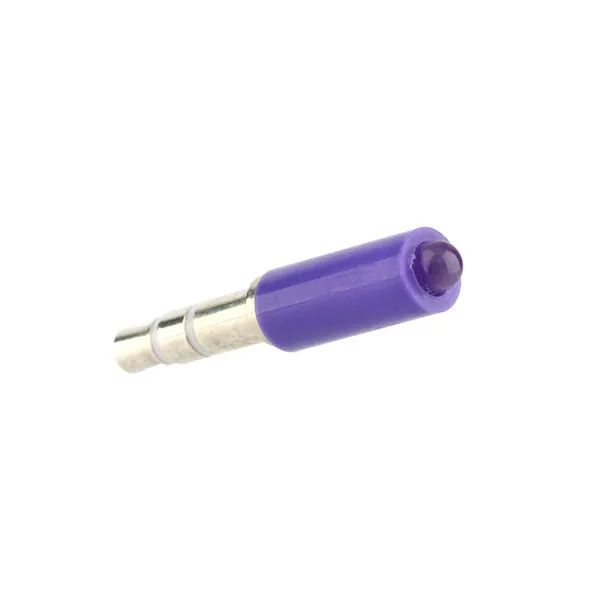
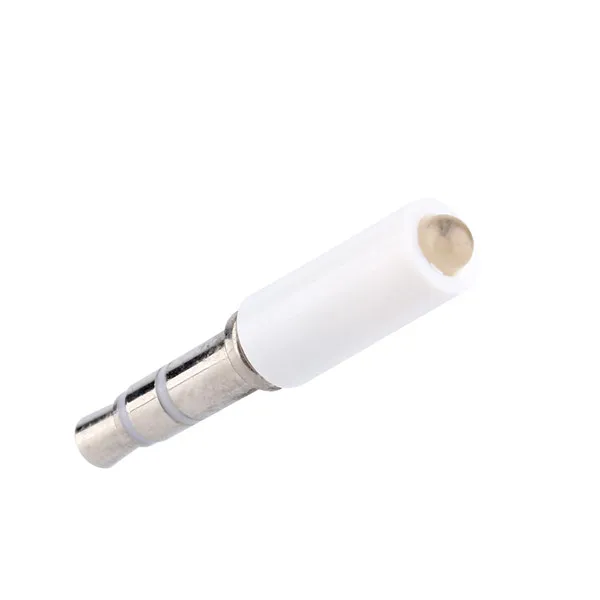
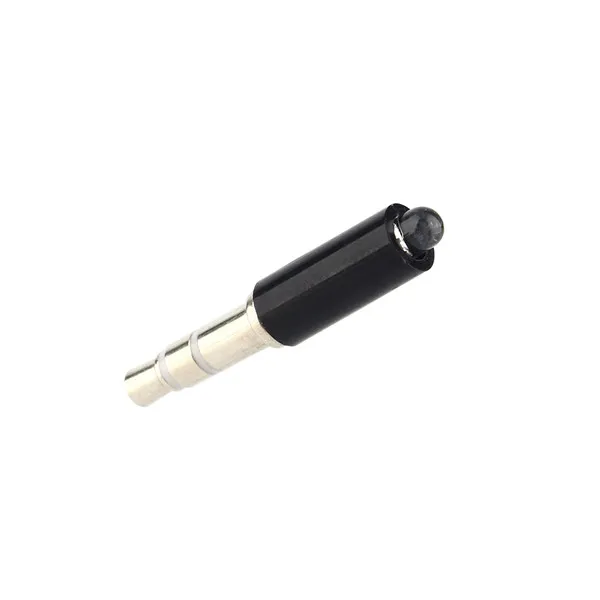
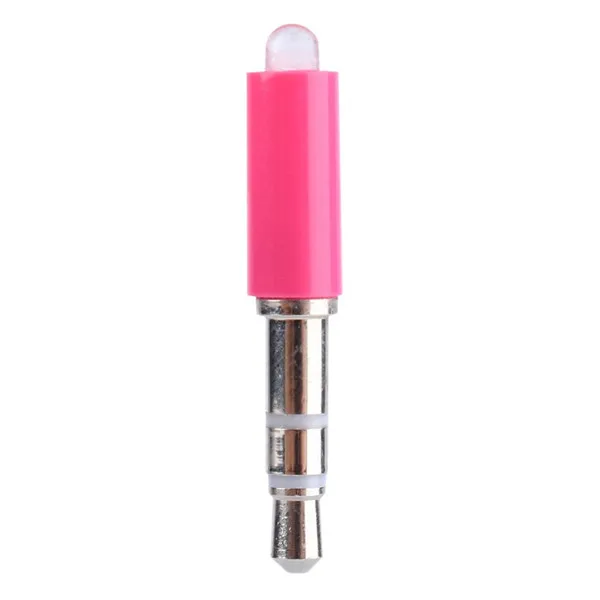
Description:
100%Brand New and High Quality!
Precautions:
1.Please adjust the volume to the maximum(press the vol+ of the phone).
2.Device Selection> Smart - ZaZa
3.Open the appliance that you want to control.
4.When you're pairing,please keep your phone is facing the infrared receiver window of the appliance 1-2 meters.Normal control distance is 3-7 meters, due to some phone headset audio power is small, controllable angle will be narrower, it is necessary to align.
Instructions:(Reading Carefully)
Andriod Users:
1.Please search and download"ZaZaRemote"in the Android application market.
2.Setting:
Check your phone settings, in music, sound settings, Turn off Dolby sound, balanced sound, mixing, volume limits and other audio software, or it may not be used. In the software settings, the device selection is set to smart-zaza; In the Advanced Settings, set zaza maximum volume is 100%, no other settings.
The default is 100%, the largest part of the phone to be adjusted zaza volume and sensitivity of 70% -100%.
3.Pairing method:
(Install infrared transmitter, restart the software, if you know the appliance model, you can directly search for this model and then download.If you do not know the specific model or you can not search, you can use automatic matching.)
First you need to choose their electric type, and then select the appliance brand and model, and then long press the right test button.Keeping a distance of about 1 meter, the phone needs to be aligned with the infrared receiver window appliances of the appliance.(When automatic pairing, air conditioning, SLR automatic matching test is the power button,you can hear the "tick" sound; a television, set-top boxes automatic matching test is the volume key, you need to make sure appliances are open, when you see the volume bar up, which proves appliance is responsive)
If you have tested all codes are not reflected, may be you can choose the appliances' brand to "ALL", because a lot of remote control codes are common, the use of automatic matching must have patience! For example, Haier air conditioning Found pairing, paired to more than 400 sets of signals to be successful, the current use of air-conditioning Media remote control code.
Apple Users
1.Software download:
Please search and download"ZaZaRemote".
2.Phone Settings:
Settings> Music> EQ and volume restrictions must be closed
Open the software, in the advanced settings set to 100% in volume, 82% by default.
3.Pairing method:
Install infrared transmitter,Click Add, automatically matching screen appears, set the battery type, brand appliances, DIY match play √
Please press the blue button aligned household appliances, keep a distance of about 1 meter phone, and then aligned to the remote electrical infrared receiver window, you can observe appliances reflect, let go immediately, click on "further test signal", one by one test each function key, if you can use, you can download.If unsuccessful, continue to return and continue the pairing.
(When automatic pairing, air conditioning, SLR automatic matching test is the power button,you can hear the "tick" sound; a television, set-top boxes automatic matching test is the volume key, you need to make sure appliances are open, when you see the volume bar up, which proves appliance is responsive)
If you have tested all codes are not reflected, may be you can choose the appliances' brand to "ALL", because a lot of remote control codes are common, the use of automatic matching must have patience!
It is possible to hear the sound when the coding has passed, you can change "forward" to "back" to look up to the reflecded code before.
Note:Support IOS5.0 and above,iphone4s 5 5s 6 6plus 6s 6s plus
Support Android 3.0 and above
Specification:
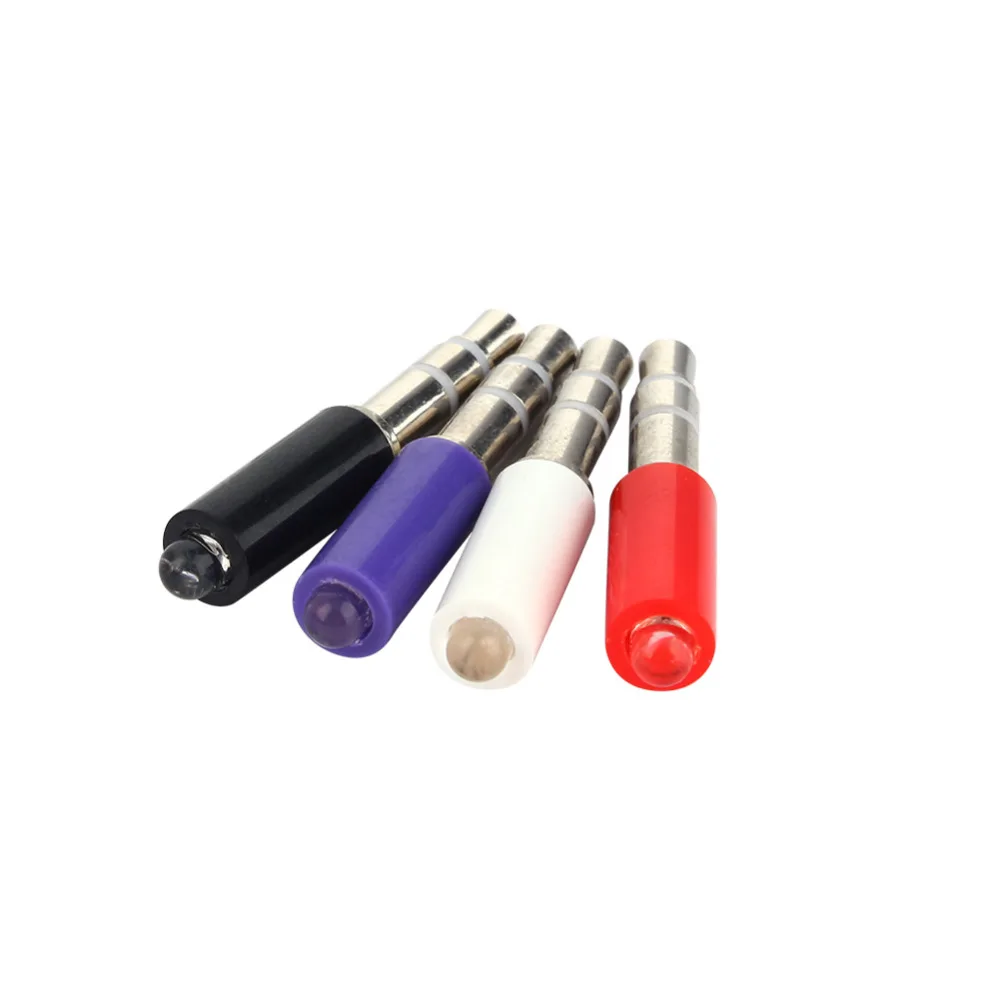
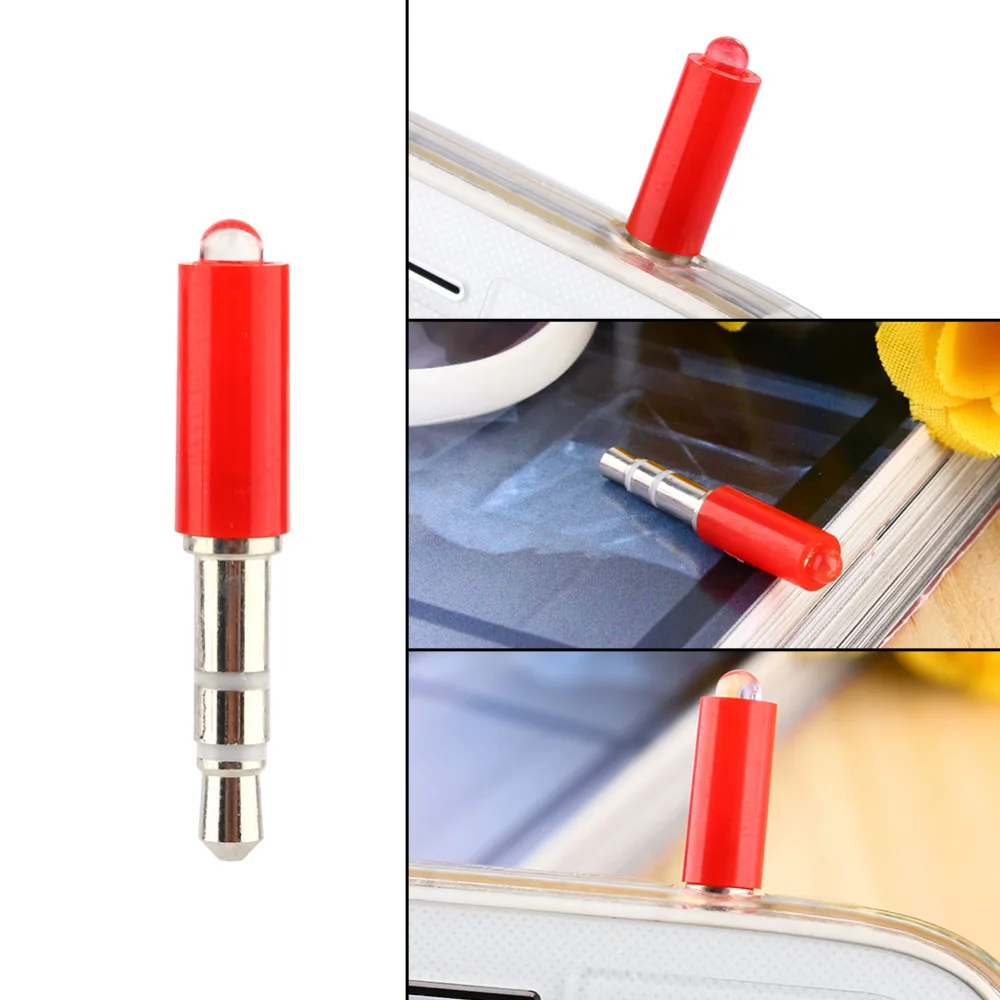
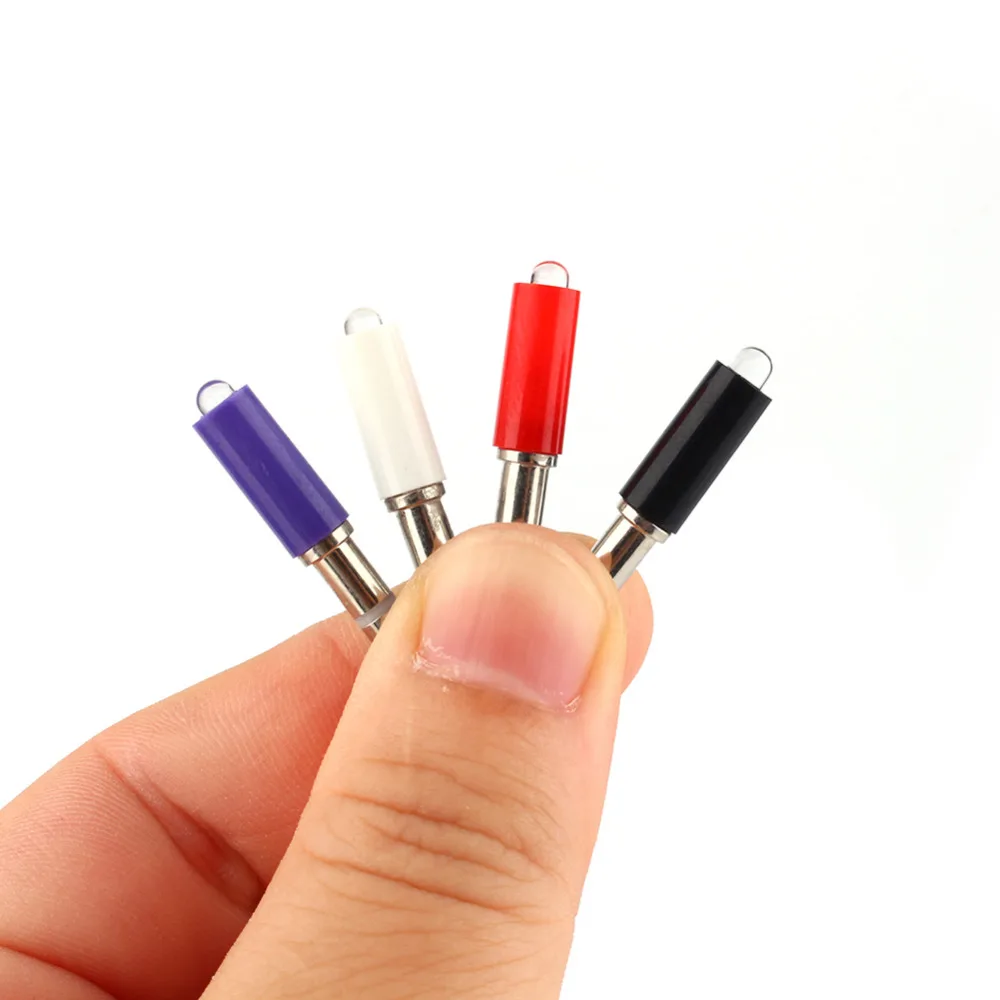
Length: Approx. 3cm
Connector Size: 3.5mm
Color:Black/White/Hot Pink/Red/Purple
Original Box:No
Attention: Size may be slight inaccuracy due to different batches of the products, or hand measurement;
Color may be little different due to monitors. Please take real product as standard, thanks for your understanding!