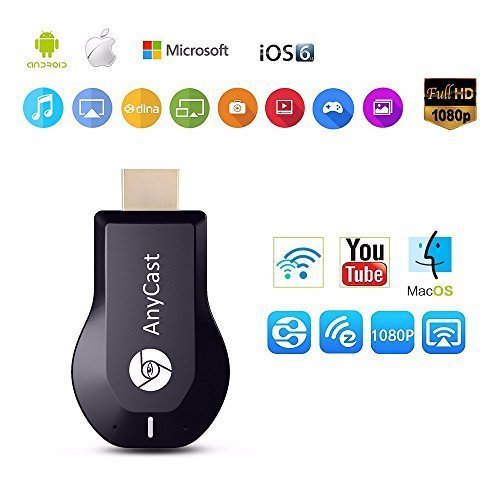
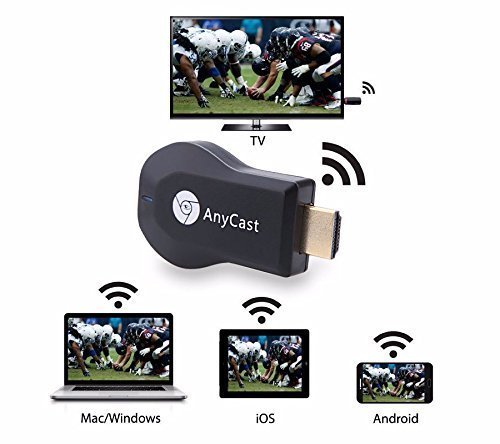
Studio : lijunkeji Publisher : lijunkeji Binding : Electronics Product Description
System Requirement:
For IOS: Support IOS 7.0 to newest version (Devices: For all iPhone model after iPhone4 / all iPad model after iPad 2 / all iPod touch after iPod touch 4th generation)
For Android 0S: Support Android OS 4.4 or above(Not include Android 7.0)
No App or drivers required. 3 steps to enjoy media on large screen: Plug->Connect->Mirroring
Step 1: Plug
Plug everything in (Please use a 1A power source if your TV doesn't supply that much from its USB port). Set your TV to the HDMI port you picked.
Step 2: Connect(iOS)
Go to your wifi settings and wait for it to appear and then select it.(Get SSID and Password/PSK on screen)
Step 3: Mirroring(iOS)
Pull up Control Center and tap "Airplay Mirroring". It may take awhile for it to show, but once you tap it your iPhone/iPad screen will now be cast to your TV.
Note: To connect your home Wifi at the same time, go to a browser and input 192.168.203.1 This will open a setting menu, please choose Internet and select your normal home wifi to connect and go back to Step 3 above. If you use 3G/4G instead of your home WiFi, please ignore the Note.
Step 2: Connect(Android)
Note: 1. Turn on your WiFi
2. Please press the button on dongle to switch to Miracast mode, as it is in Airplay mode by default.
Pull down "Control Center" on your phone and turn on Miracast(Screen mirroring/ Multicreen/smartview) and wait for it to appear and then select it(Get SSID and Password/PSK on screen)
Step 3: Mirroring(Android)
Connect and press Start and your smart device will now be cast to your TV.
Specification:
CPU:AM8252b
UI: Standard UI
Wi-Fi: 802.11b/g/n 150Mbps 2.4Ghz
Power :5V/1A
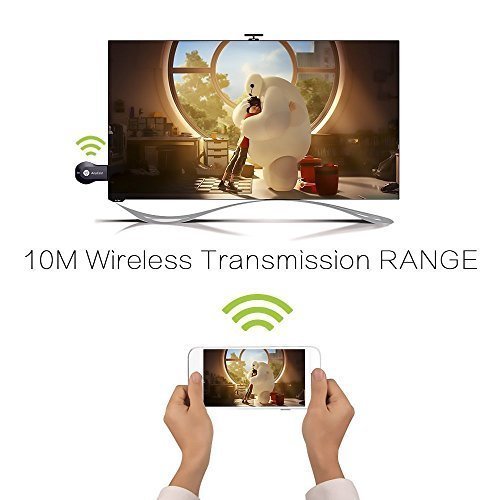
Working distance: Up to 10m.
Package Included:
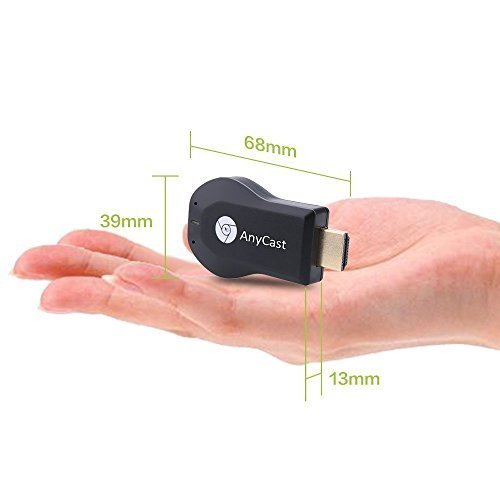
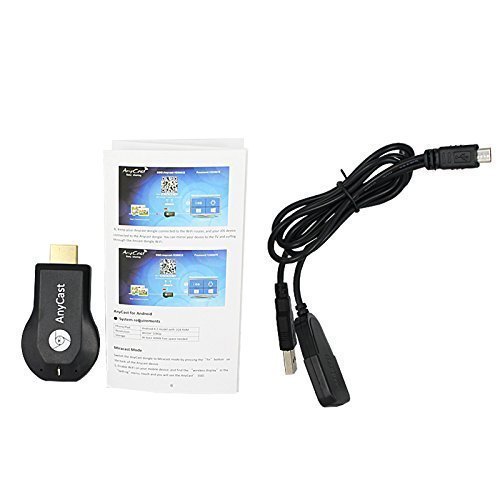
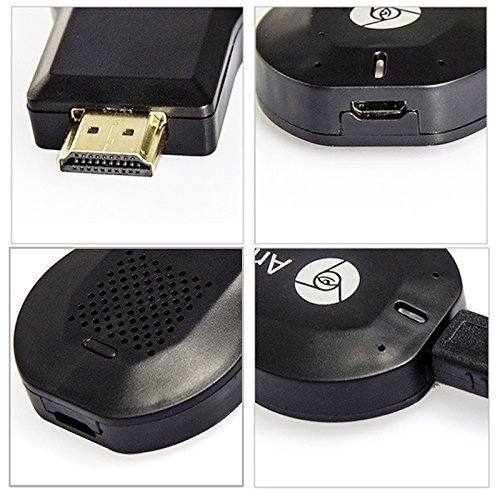
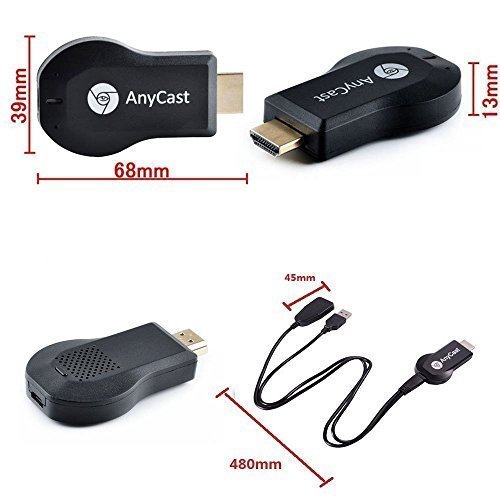
1 x AnyCast Wifi Display Dongle
1 x WiFi Antenna Cable
1 x English User Manual
0
|