
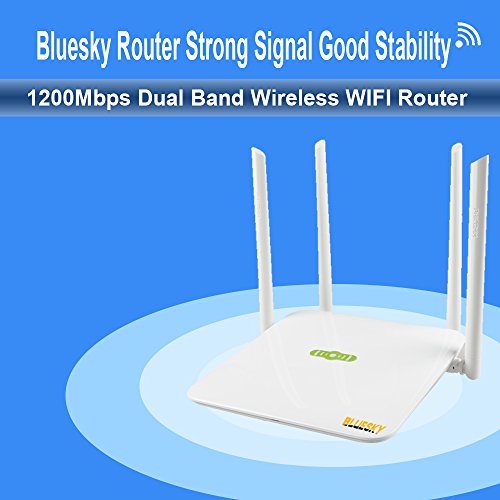
Wireless Router, Bluesky AC1200Mbps 5GHZ/2.4GHZ Dual Band Wireless WIFI Router, 4-port Stable and Wide Coverage Router- White


Product Description
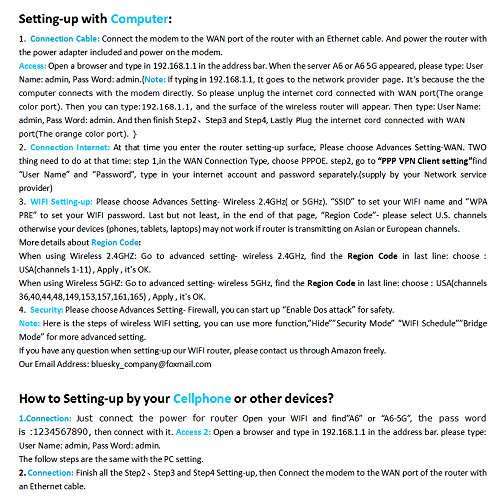
Setting-up with Computer:
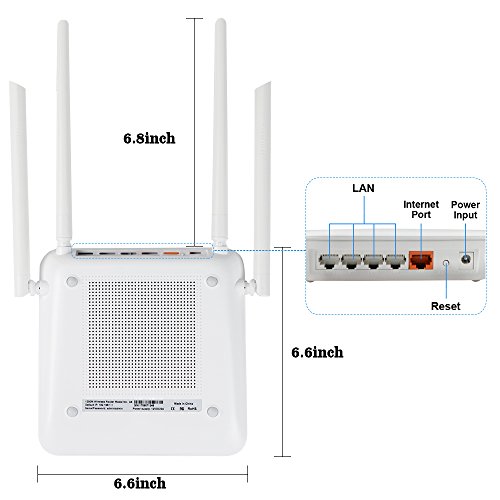
1.Connection: Connect the modem to the WAN port of the router with an Ethernet cable. And power the router with the power adapter included and power on the modem.
2. Access: Open a browser and type in 192.168.1.1 in the address bar. When the server A6 or A6 5G appeared, please type: User Name: admin, Pass Word: admin.
3. Connection: At that time you enter the router setting-up surface, Please choose Advances Setting-WAN. TWO thing need to do at that time: step 1,in the WAN Connection Type, choose PPPOE. step2, find "User Name" and "Password", type in your internet account and password separately.
4. WIFI Setting-up: Please choose Advances Setting- Wrieless 2.4GHz( or 5GHz). "SSID" to set your WIFI name and "WPA PRE" to set your WIFI password. Last but not least, in the end of that page, "Region Code"- please select U.S. channels otherwise your devices (phones, tablets, laptops) may not work if router is transmitting on Asian or European channels.
5. Security: Please choose Advances Setting- Firewall, you can start up "Enable Dos attack" for safety.
Note: Here is the steps of wireless WIFI setting, you can use more function,"Hide""Security Mode" "WIFI Schedule""Bridge Mode" for more advanced setting. If you have any question when setting-up our WIFI router, please contact us through Amazon freely.
Our Email : bluesky_company@foxmail.com
Setting-up with Cellphone:
See the picture.
Feature
1. Complies with 2.4GHz and 5.8GHz IEEE802.11ac and backward compatible with IEEE 802.11b/g/n standards.