Bluetooth Dual Sim Adapter for iphone 6S 6 5S 4 With Clip Expansion Micro Card Slot Sim Cards Adapters Bluetooth 4.0 Transmitter

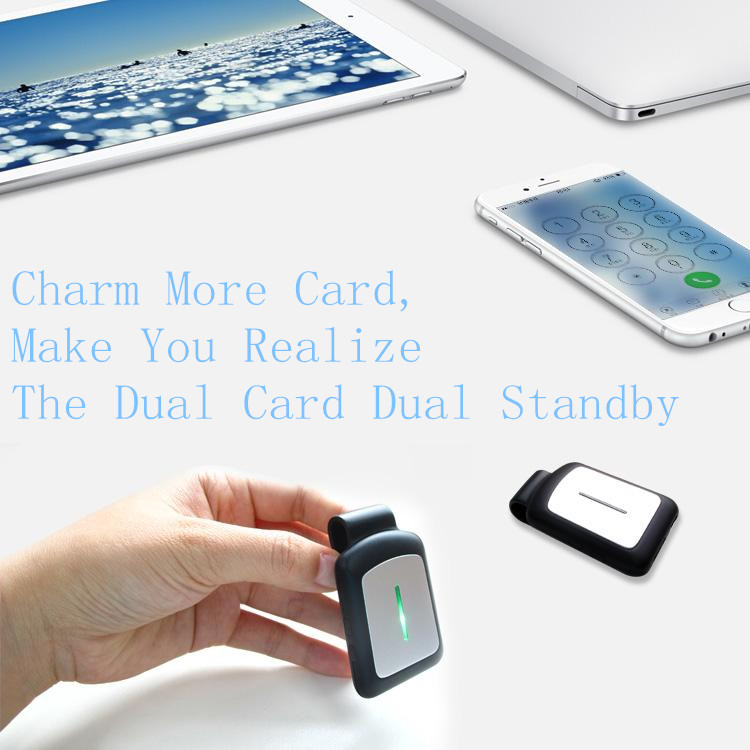



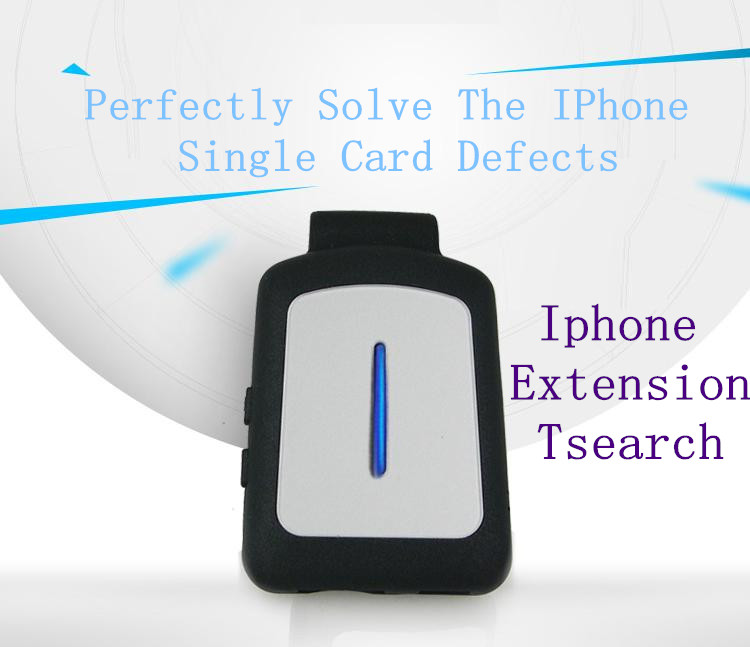






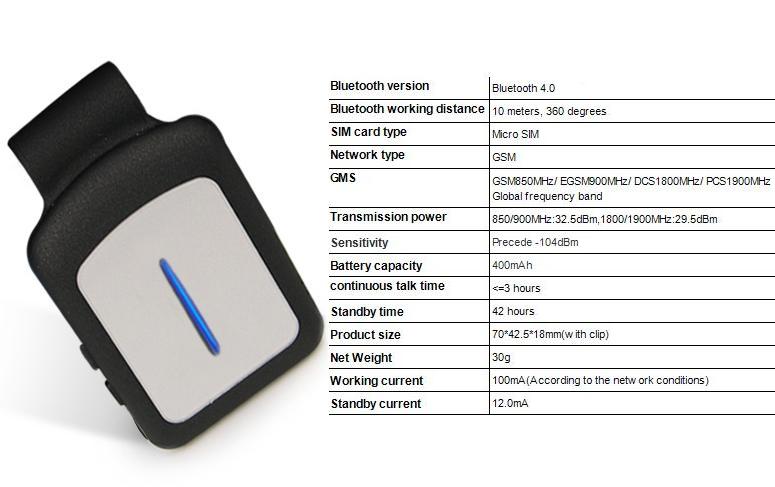
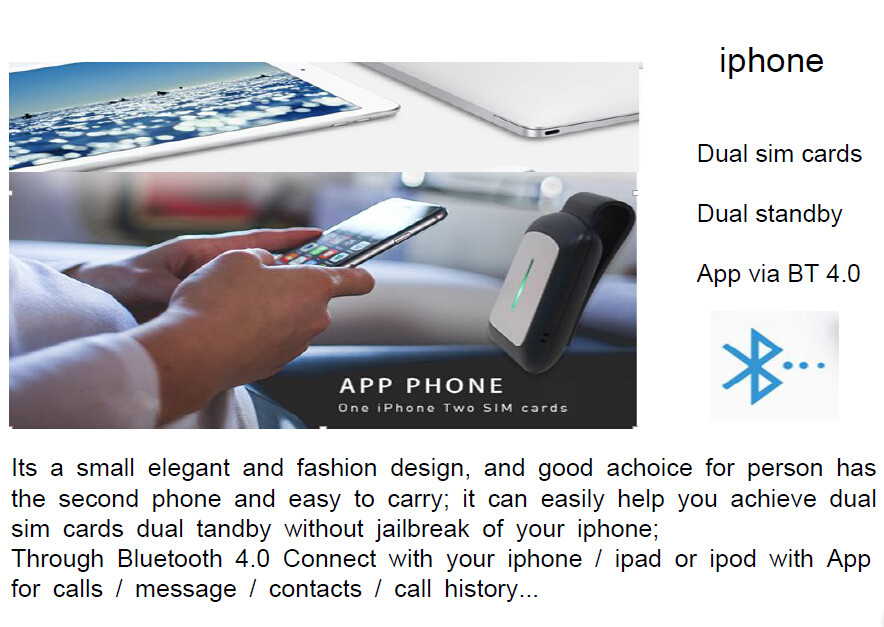
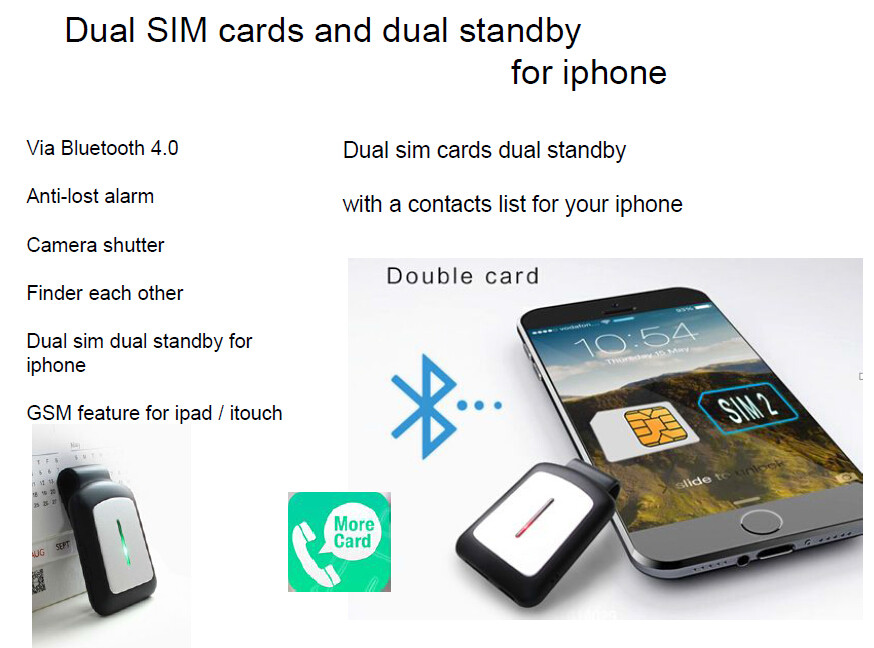
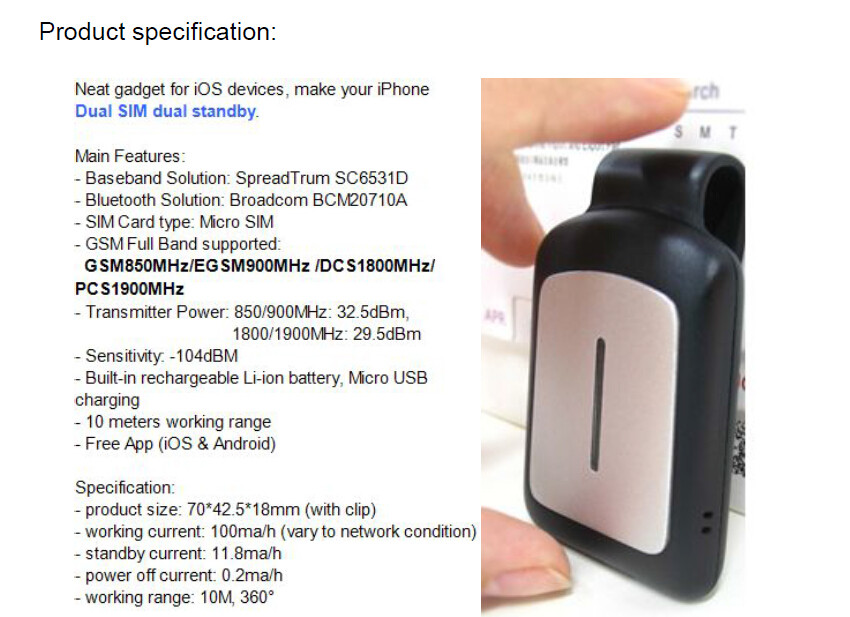


Perfectly solve the for iPhone single card defects , It Is So Easy To Realize Dual Card Dual Standby.
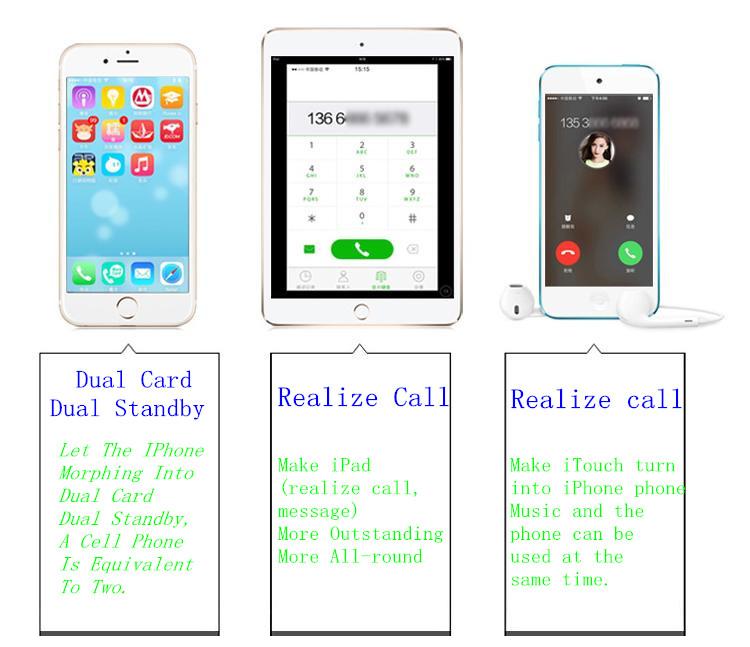
Let the for iPhone morphing into dual card dual standby, a cell phone is equivalent to two.
Security privacy guaranteed, eliminating the worry, not afraid of harassment.
Realize call - Make for iPad (realize call,message) More outstanding, more all-round
Realize call - Make for iTouch turn into for iPhone phone,Music and the phone can be used at the same time.
More powerful function -Super powerful APP,more strong function .No Need Jailbreaking.Perfect Experience
So easy to selfie. smaller and lighter design,let you don\\\'t feel in the hand.
Super Scope ,Alarm,If your APP PHONE with your mobile phone for more than 10M apart,your mobile phone will sirens sound an alarm.APP PHONE will lights(red and green) flashing. Distance >10M Alarm to remind
PRODUCT DETAIL: Package Size:12*9.6*4cm
Login website to download"More Card"APP.
Description:
Before using, kindly confirm below issues:
1. Your For iOS devices Bluetooth Standard is Bluetooth 4.0. (for iPhone 4S/5/5S/6/6PLUS/6S/6SPLUS)
2. Your devices for iOS version is 7.0+.
3. Your devices Bluetooth is turned ON.
4. You have access to For Apple App Store, with internet connection (GPRS, 3G, 4G, Wifi) and your
for Apple ID.
5. This AppPhone supports GSM band only, for phone call & SMS. Do not support network data.
Note:
1. On for iPad, please switch to for iPhone App searching menu.
2. To ensure App run properly, please enable App to access related permissions: Notification,
Contacts Access, Bluetooth Connection etc.
Connect for iPhone & Disconnect Alarm
1. Before connection, please make sure for iPhones Bluetooth is turned on.
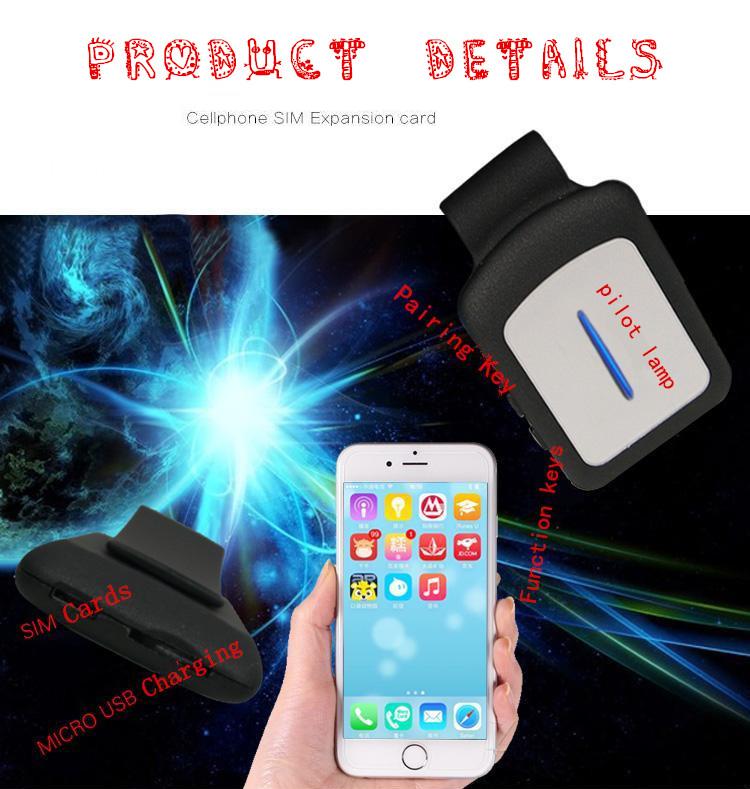
2. Please insert Micro SIM card before pairing. Do not insert after entering Pairing.
3. Long press Pairing button 5 seconds to enter Pairing Mode, Red & Green LED flashing to
indicate.
4. Open the App, for iPhone will search & auto connect AppPhone nearby, will Beep to indicate
connected.
You can check connecting status in Apps Setting menu:
Green means connected;
Red X means disconnected/unconnected.
5. When distance between for iPhone & AppPhone is beyond working range:
Pop up windows will be shown on for iPhone, together with notify sound;
AppPhone will Beep to alert, Red & Green LED will be flashing;
When they become within working range, AppPhone will auto reconnect to for iPhone.
Note:
- If AppPhone does not auto connect to for iphone, please kill App in background and reopen.
- Please make sure for iPhones Bluetooth is turned ON.
- When SIM card successfully registered to network, Green LED will be flashing slowly, network
Carriers name will be displayed on upper-left corner.
If SIM card failed to register to network (loose contact or bad network coverage), Green LED
will be flashing rapidly, no Carriers name displayed on screen. You need to unplug and insert SIM
card & power off and on AppPhone to retry.
User Login
1. App supports login with third-parties account: Phone No., Wechat, QQ, SinaWeibo.
2. The Blocklist you set will be uploaded to Cloud, and auto downloaded to App for new
installation or login.
Note:
1. When login with Phone No., please make sure its valid to receive verification code.
2. When login with third-parties account, please allow App to access required permissions, and
make sure for iPhone is connected to internet(GPRS/3G/4G/Wifi).
Phone Call & SMS
1. App contains SMS, Recents, Contacts and Keypad UI. Select each UI for phone call & SMS
operations.
2. App does not support Contact Edit. Please go to for iPhones Contact to edit.
3. Related Contact info will be listed when dial on Keypad. S-wipe to select the correct No. for
outgoing calls.
Remote Camera Shutter
1. To enter Remote Camera Shot:
A. Make sure AppPhone is connected to for iPhone and within working range.
B. Go to Apps Settings---Camera, to open Camera window.
C. Single press Pairing button to take photo
D. Do not support video shot operation
2. To quite Camera, click X on top right corner.
3. Please allow App to access Camera & Album.