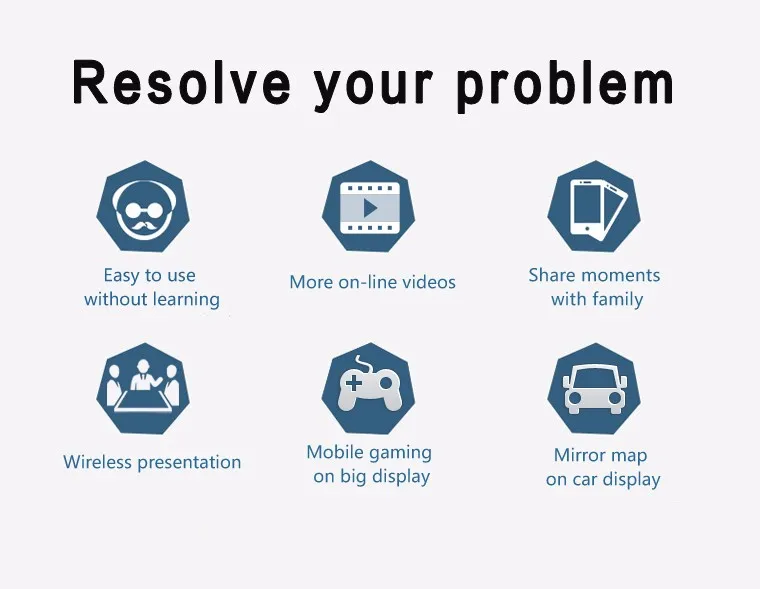
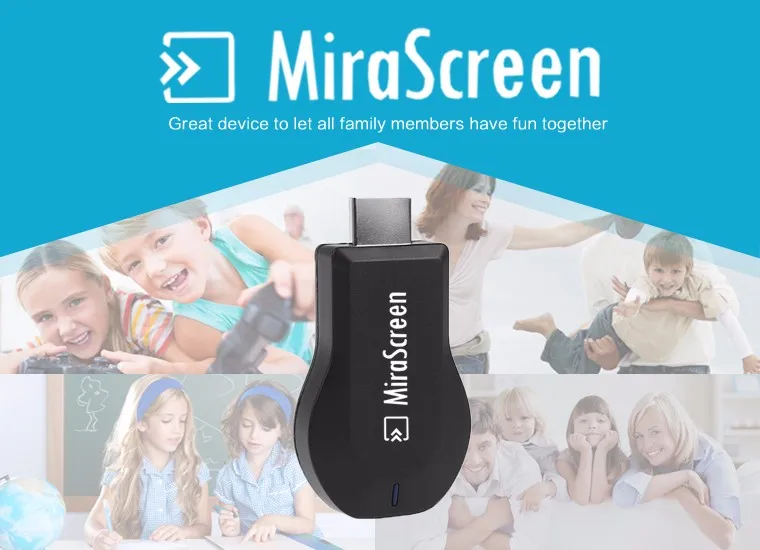
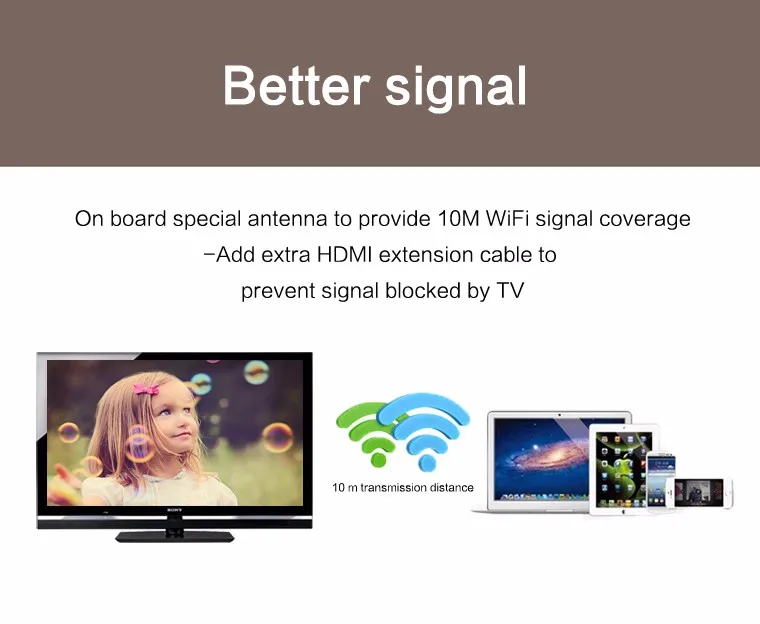
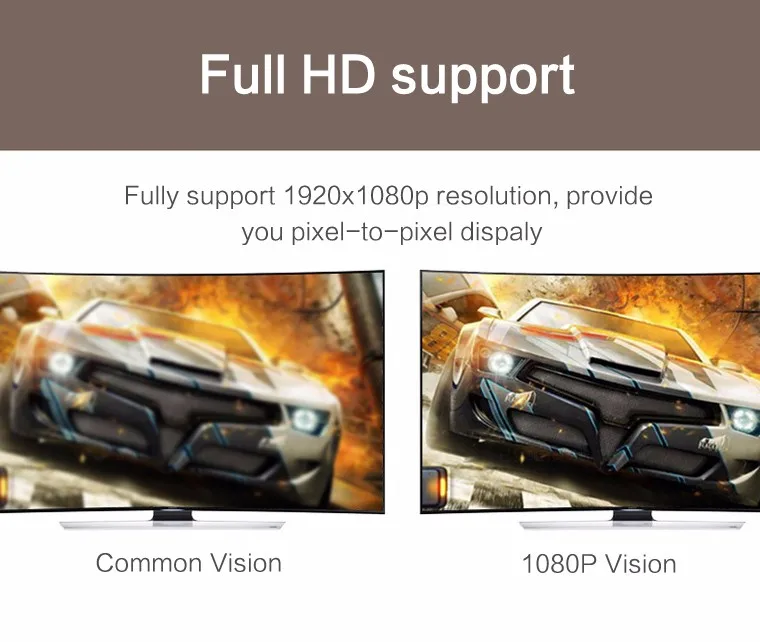
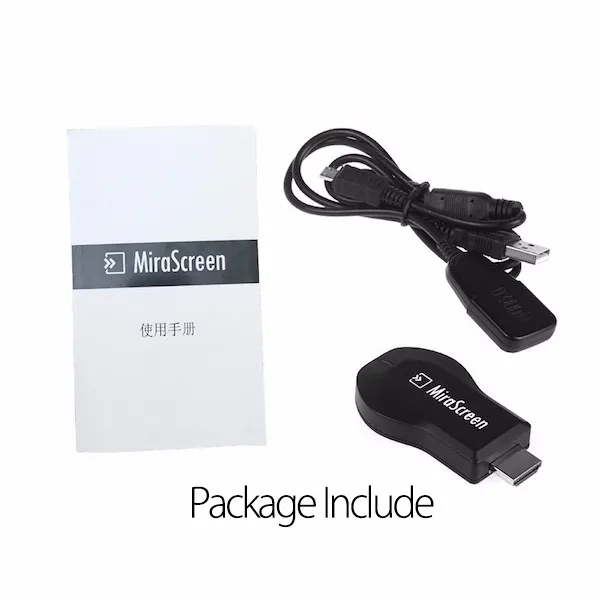
Main Features:
How to use it
Tips 2.1 Set up
1, Please connect WiFi model with USB cable to MiraScreen dongle body.
2, Please plug USB cable to external USB power adapter to provide more stable power supply and WiFi connection.
3, Please plug MiraScreen to your TV through HDMI port and switch to the right TV source you connected.
4, After connection and power on, you would see the main MiraScreen page.
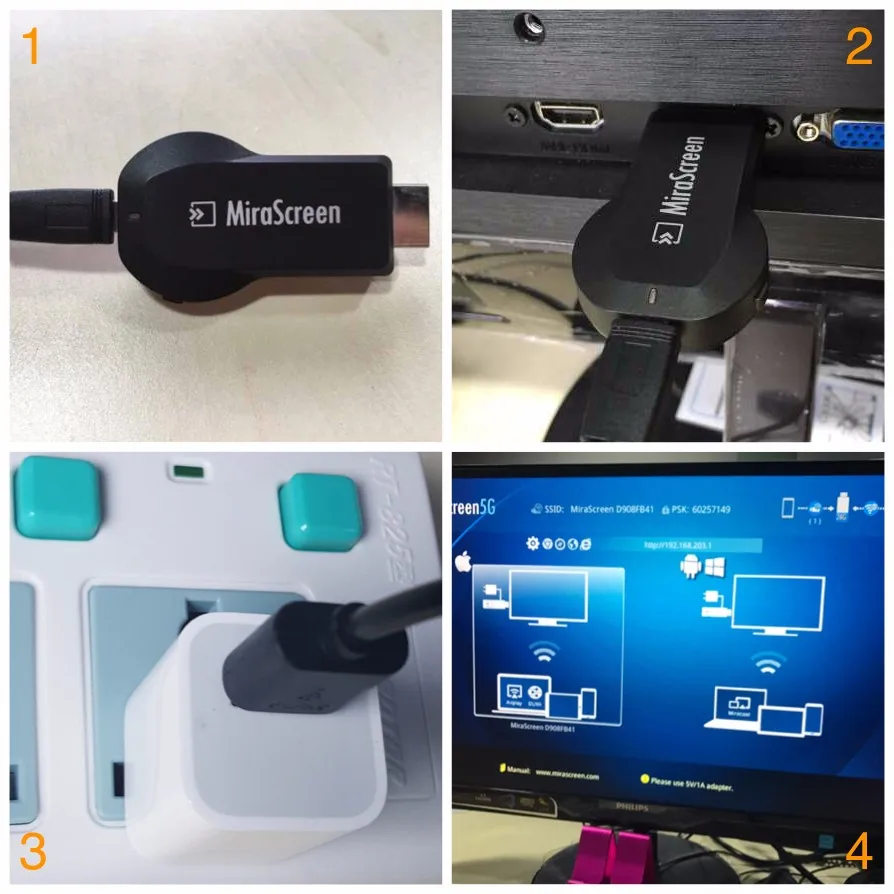
Tips 2.2 for iOS casting
1, Please switch the button on the dongle body to switch to Airplay mode.
2, Please connect iOS devices to MiraScreen network through WiFi settings.
3, Please turn on Airplay and select MiraScreen SSID to connect and start casting.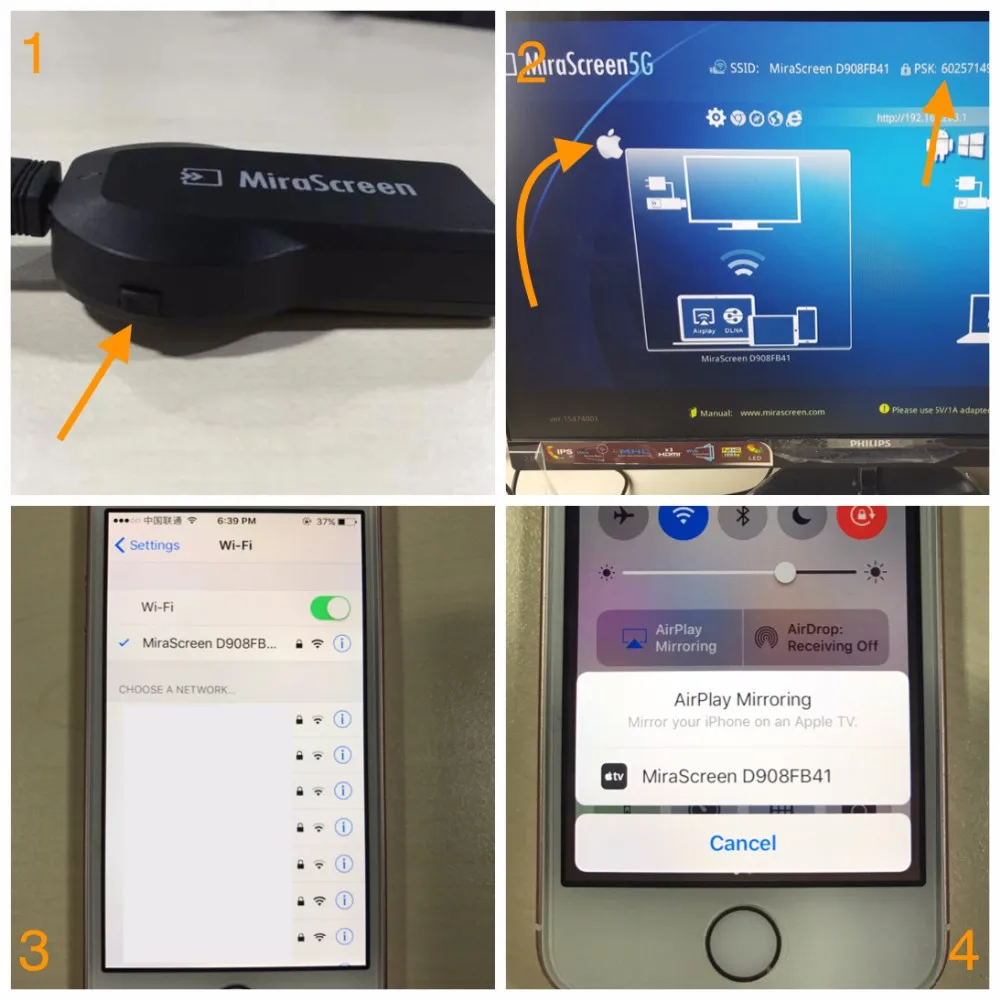
Tips 2.3 for Android casting
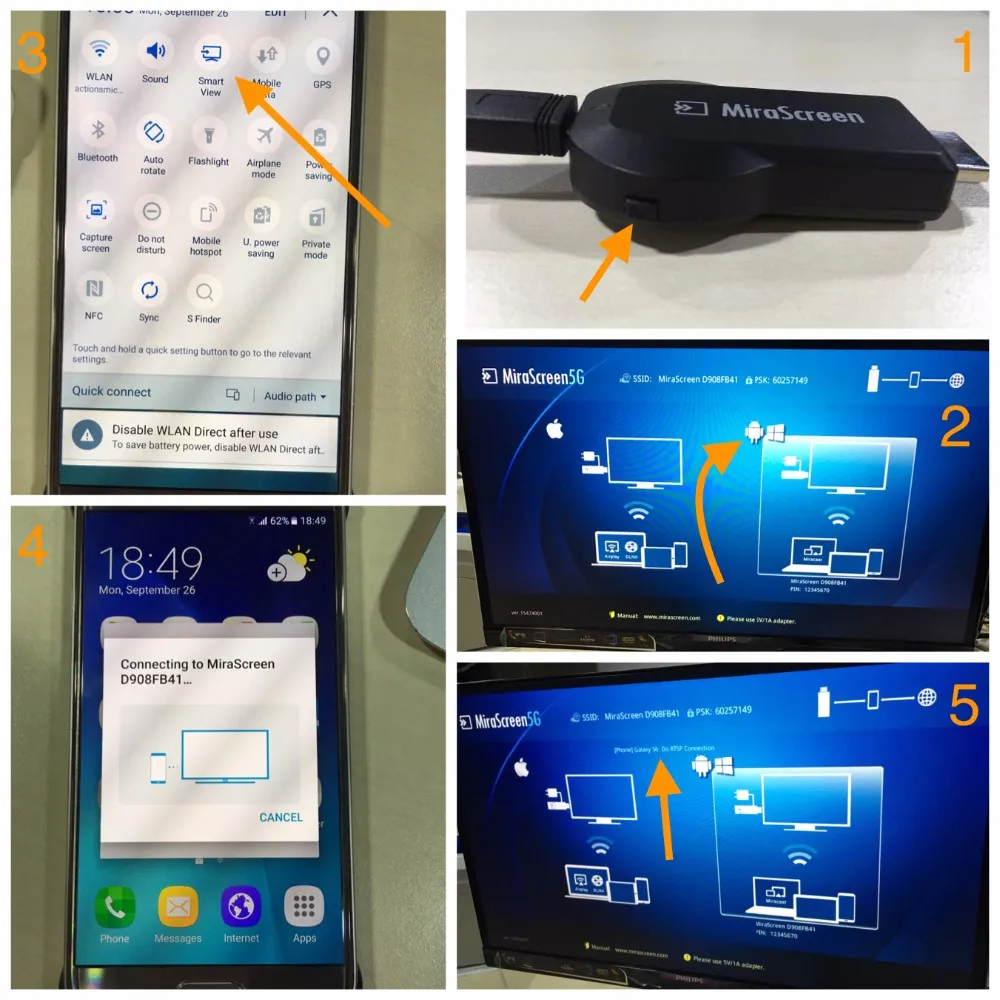
1, Please switch to Miracast mod by pressing the button on the dongle.
2, Then you will see the main Miracast mode page.
3, Please turn to your Android phone and find out Miracast function(such as screen mirroring/miracast/smart view) to connect.
4, Connecting your phone and MiraScreen through Miracast standard.
5, Connecting screen show
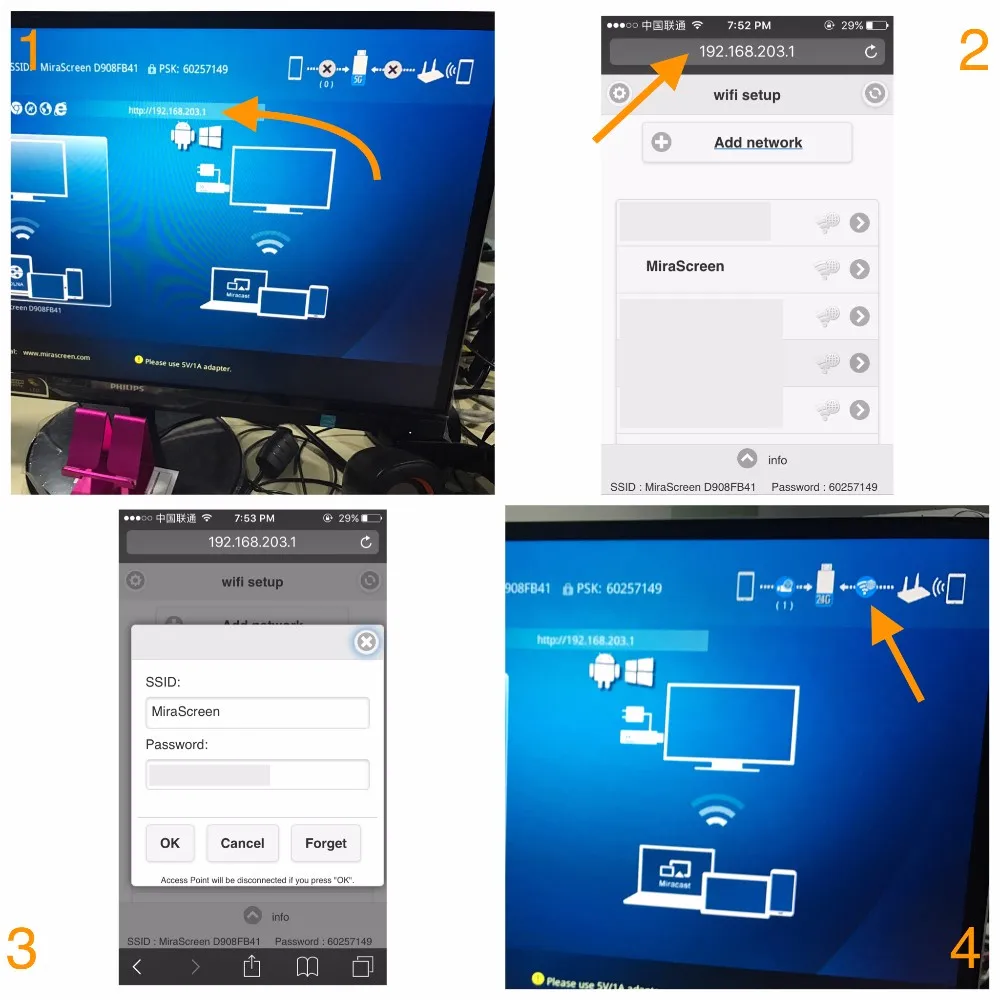
Tips 2.5 WiFi connection(all devices)
1, Please switch to Airplay mode and connect your device to MiraScreen network, then enter the IP address shown on TV 192.168.203.1 on your device browser.
2, Then you will go to the Air setup page.
3, Click Internet to connect to your home router.
4, Connect to your home router successfully.
Tips 2.6 Resolution setup(for all devices)
1, Please switch to Airplay mode and connect your device to MiraScreen network, then enter the IP address shown on TV 192.168.203.1 on your device browser.
2, Then you will go to the Air setup page.
3, Click resolution to select the resolution 1080P_30P.
4, Resolution 1080P shown on TV.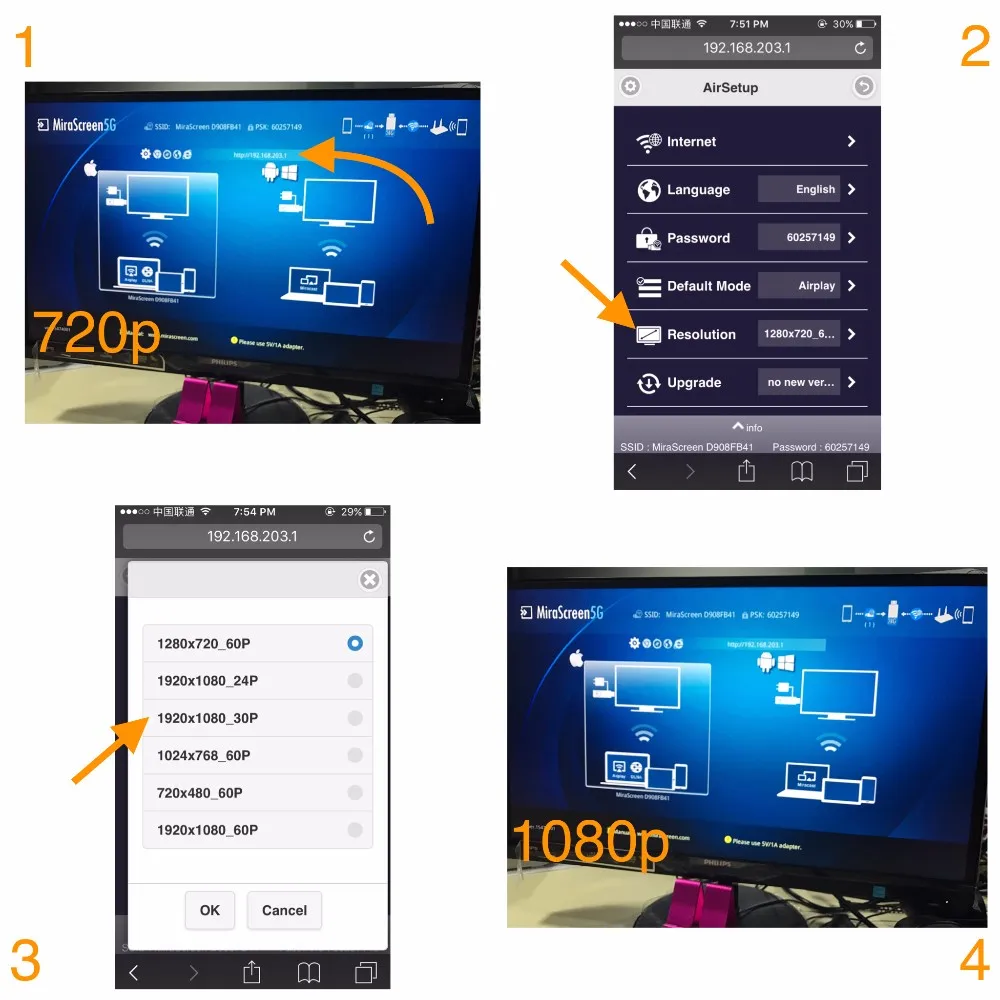
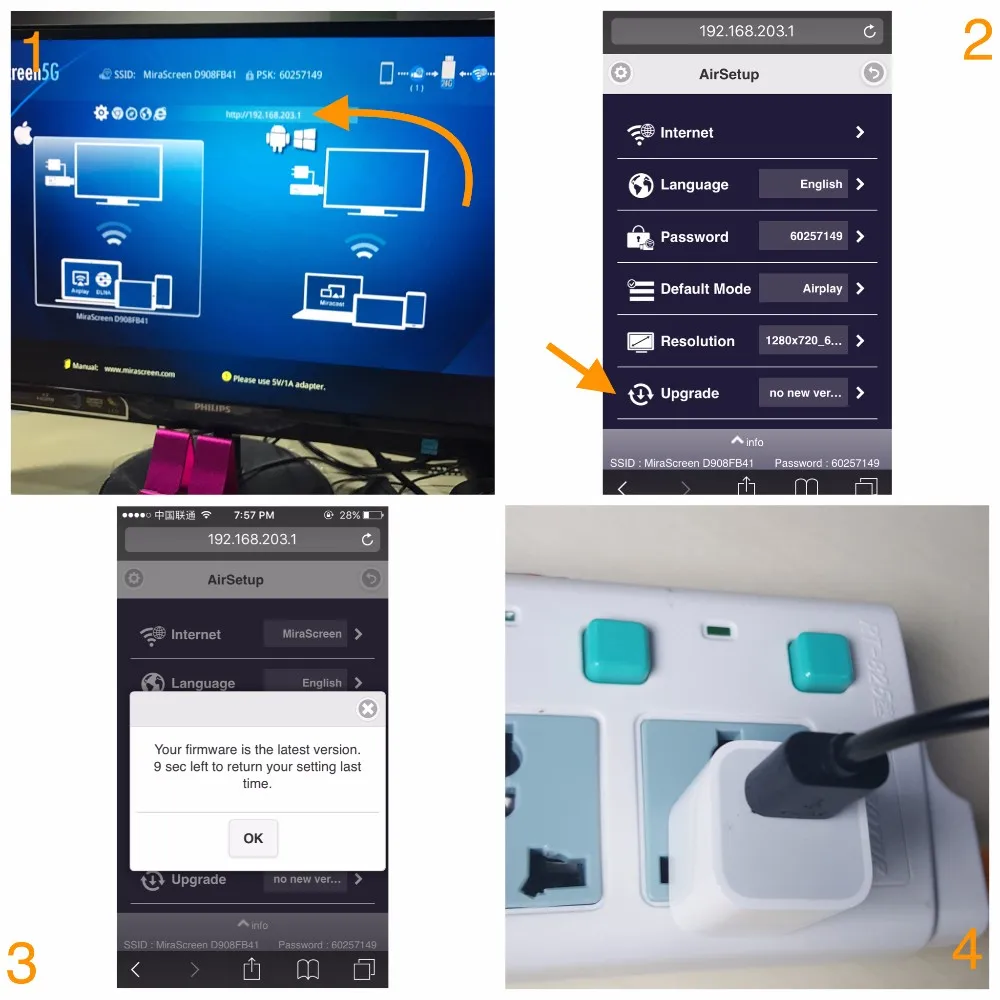
Tips 2.7 Firmware Upgrade(for all devices)
1, Please switch to Airplay mode and connect your device to MiraScreen network, then enter the IP address shown on TV 192.168.203.1 on your device browser.
2, Then you will go to the Air setup page.
3, Make sure your dongle connect to your home router, then click Upgrade to update your firmware version.
4, NOTE: when upgrading please do not power off the dongle.