


==========================================================
==========================================================
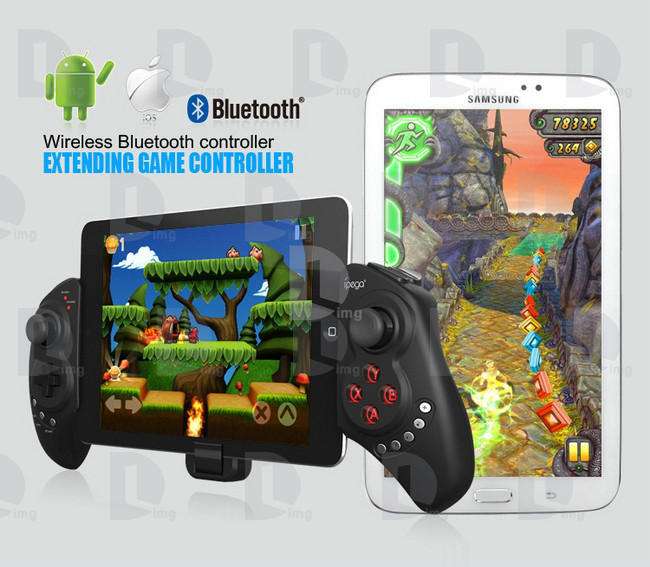
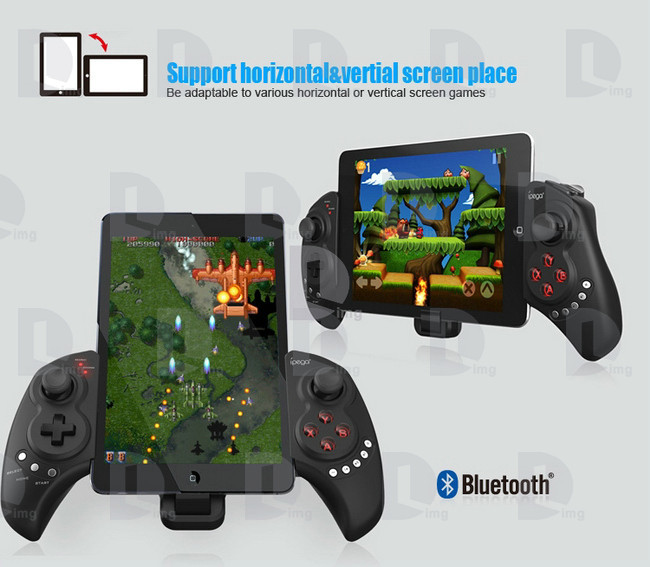
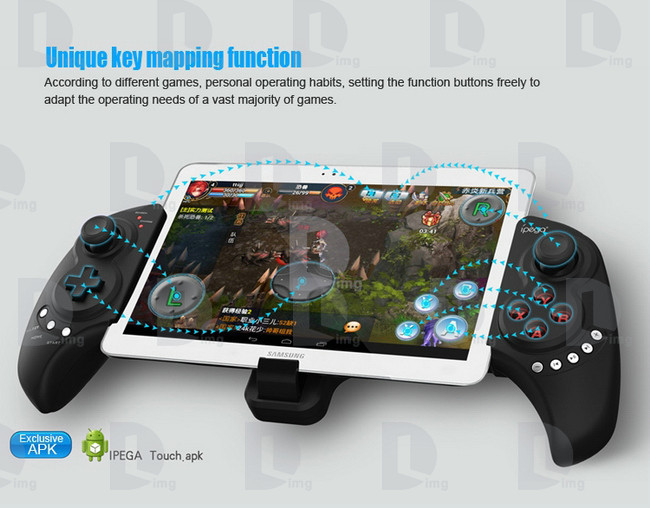
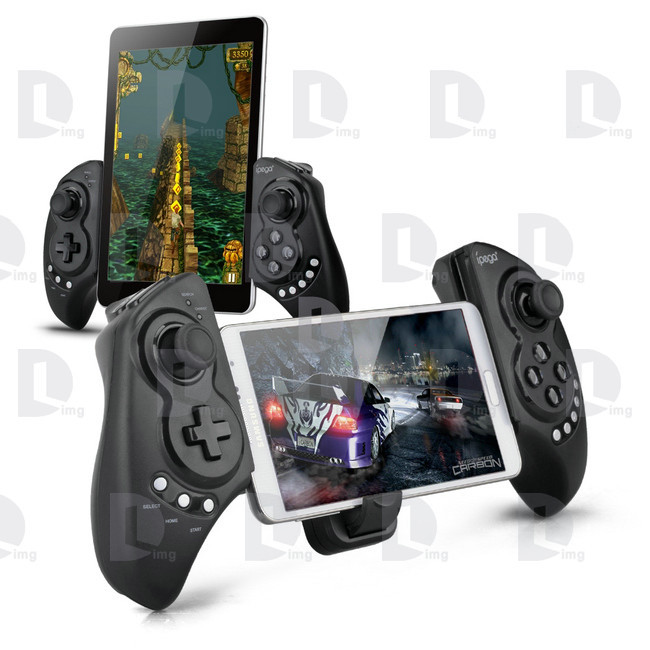
iPEGA PG-9023 Telescopic Wireless Bluetooth Game Gaming Controller Gamepad Joystick for Phone/Pod/Pad/Android IOS Tablet PC


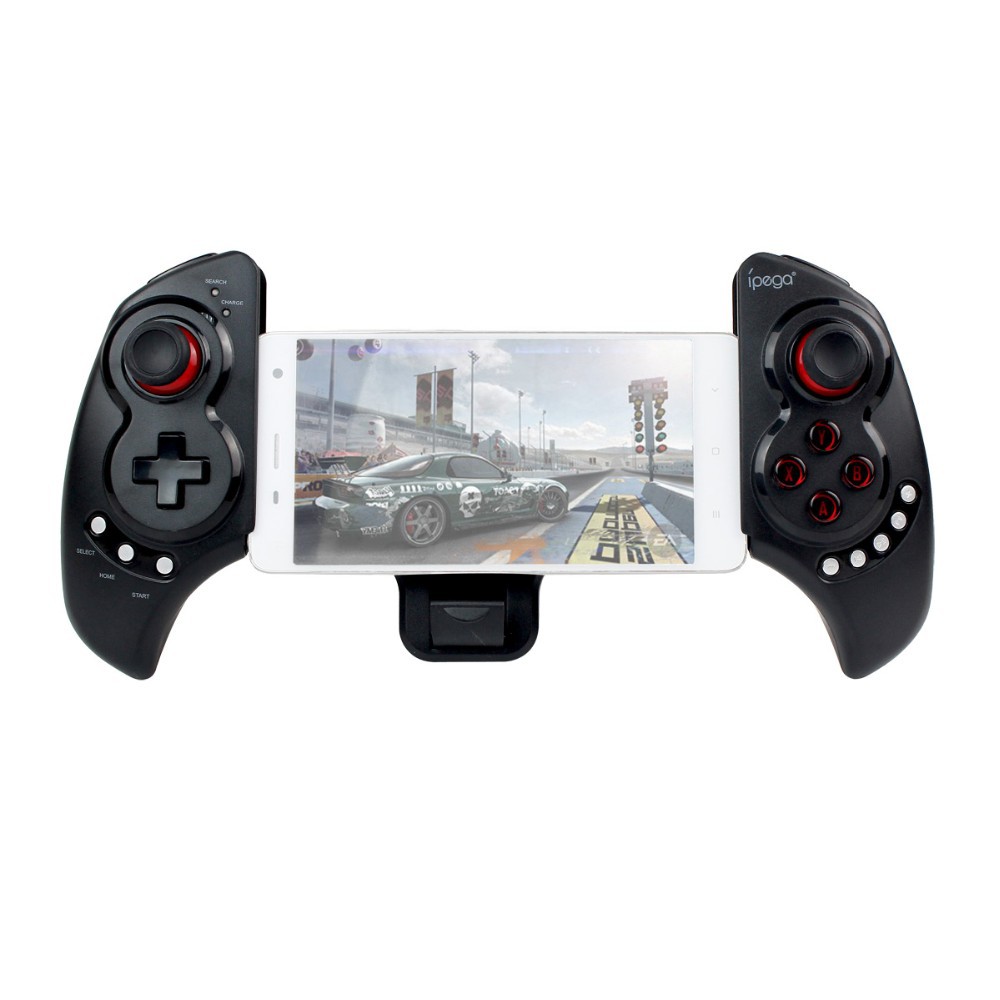
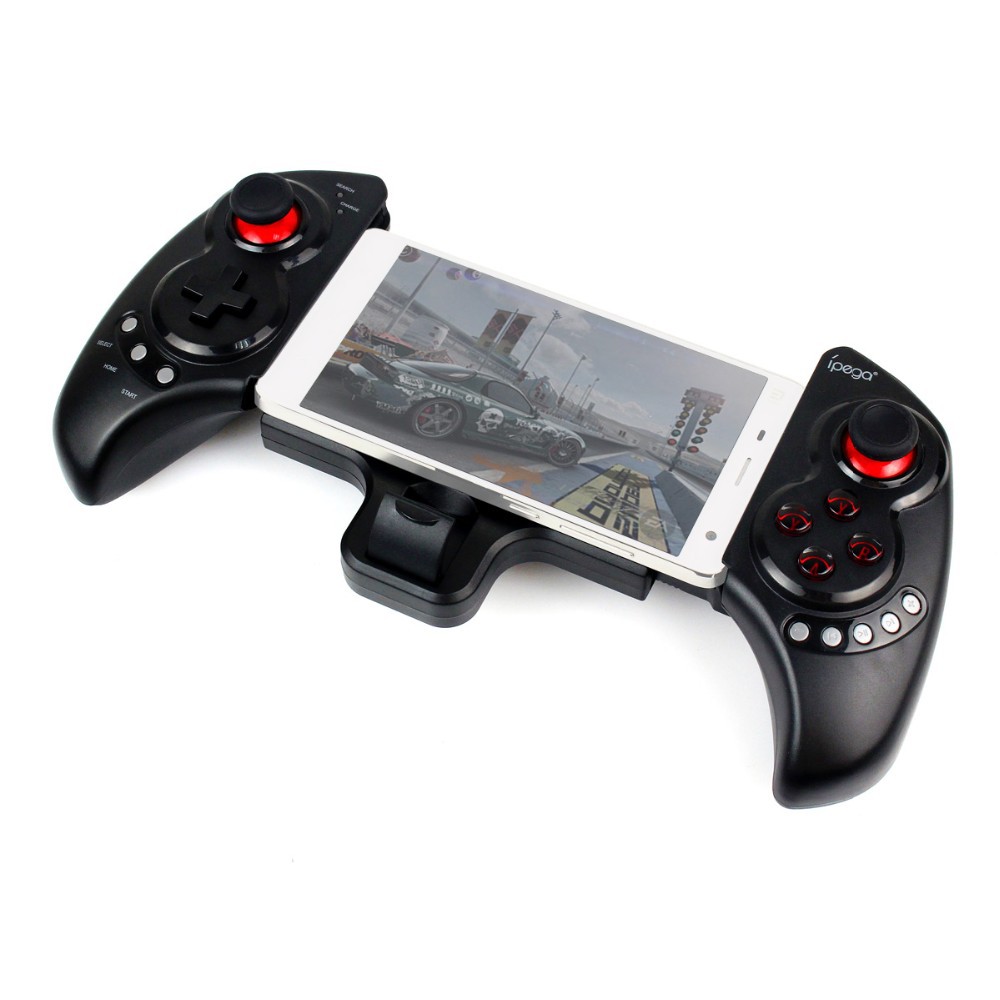
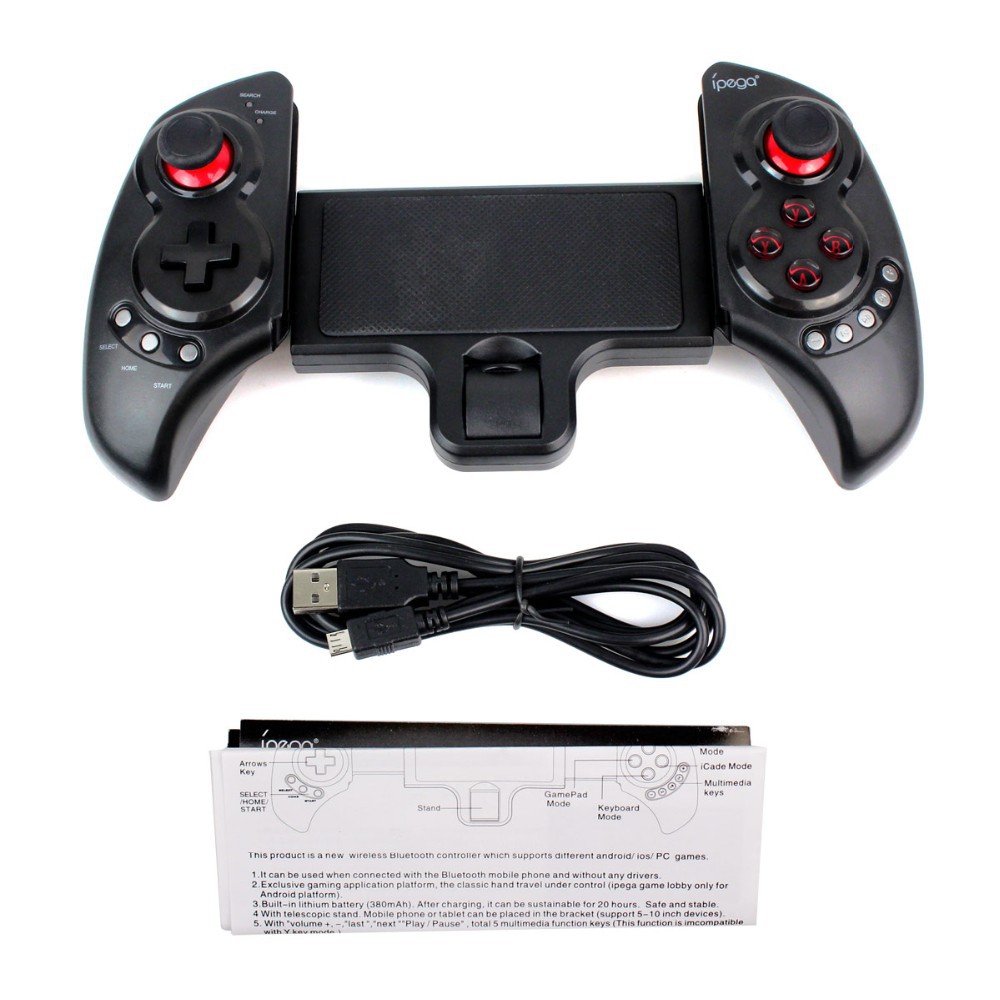
Modle:PG-9023
Kindly Note:
This game controller don't support MTK CPU smartphone
Description:
Hignlight:
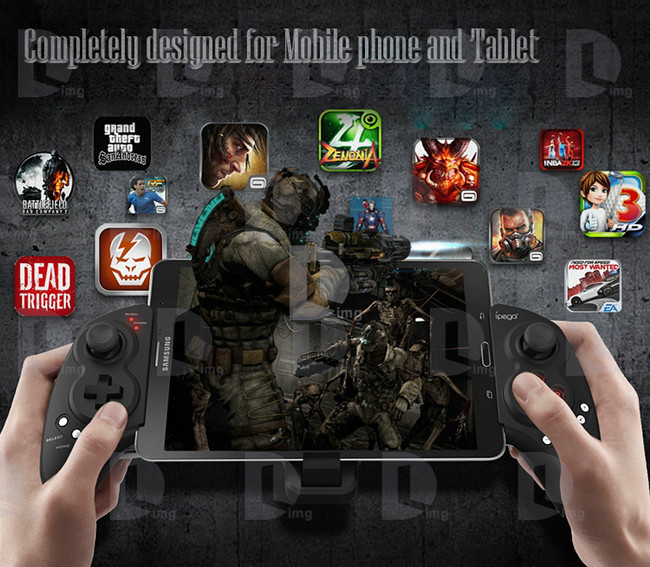
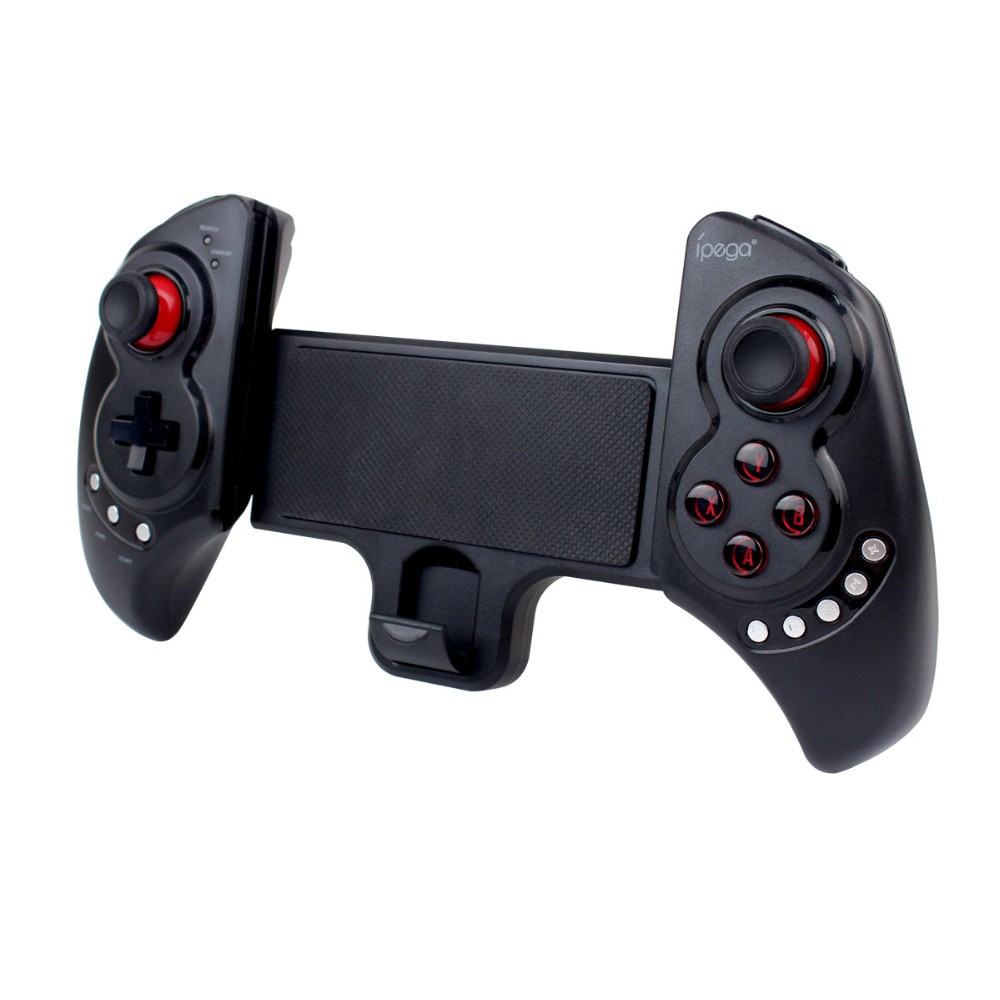
This wireless bluetooth game controller is specially designed for Tablet PC, pad, smartphone,etc.
With bluetooth 3.0 wireless transmission, it can be operated at a distance of 6-8meters without any
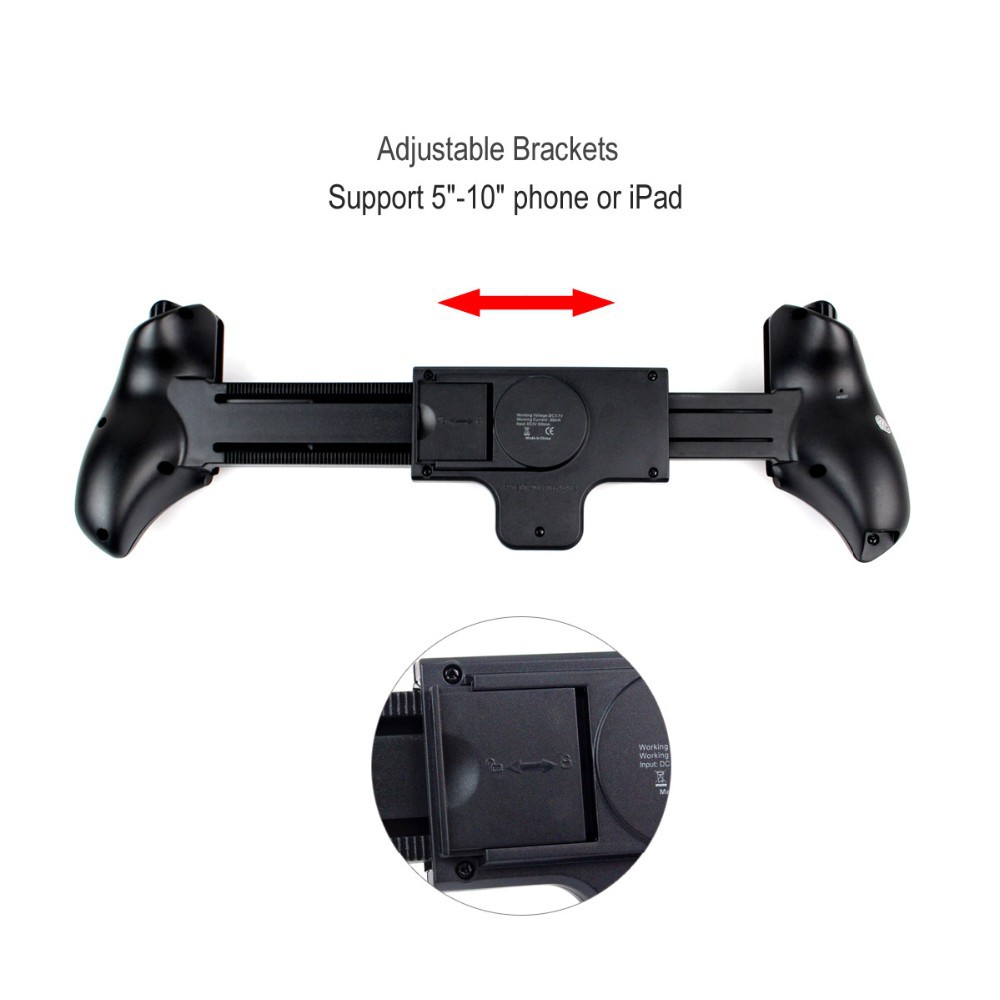
drivers. Telescopic design is one of its highlights, which can be extended to fit diffrent sizes of mobile
phones and tablets(from 5 to 10inches). It is compatible with *Pod/*Phone/*Pad as well as the vast majority of android tablet PCs
Features:
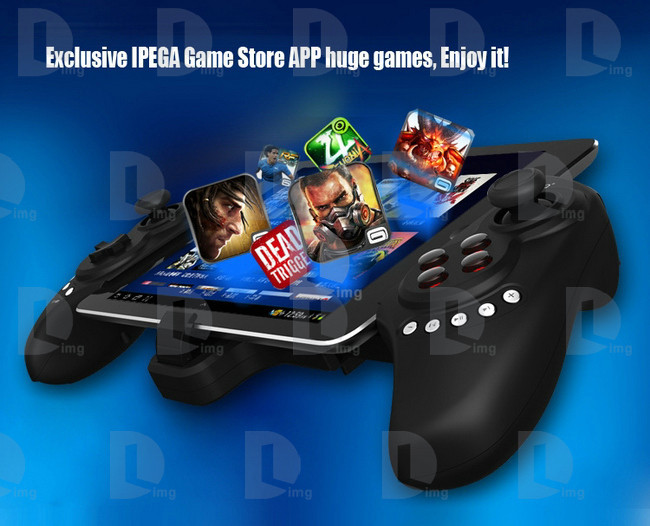
1.Exclusive gaming application platform, the classic hand travel under control (ipega game lobby only for Android platform)
2. Bluetooth transmission with any drivers, effective control distance 6~8 meters
3. Built-in lithium battery, after charging fully, it can keep working for 20 hours, safe and stable
4. Telesopic stand(5~10inch extending length), suitable for the iPod/iPhone/iPad and various android tablet PCs
5. With volume+ and volume-, last next play/pause, total 5 multimedia function keys(this function is imcompatible with Y key mode)
6. User-friendly design, automatically enter the energy-saving mode under no connection with no connection state
7. Support Android 3.2, IOS 4.3 or above
Specification:
1. Model: PG-9023
2. Bluetooth: 3.0
3. Controlling distance: 6~8M
4. Telescopic stand: Support 5~10" devices
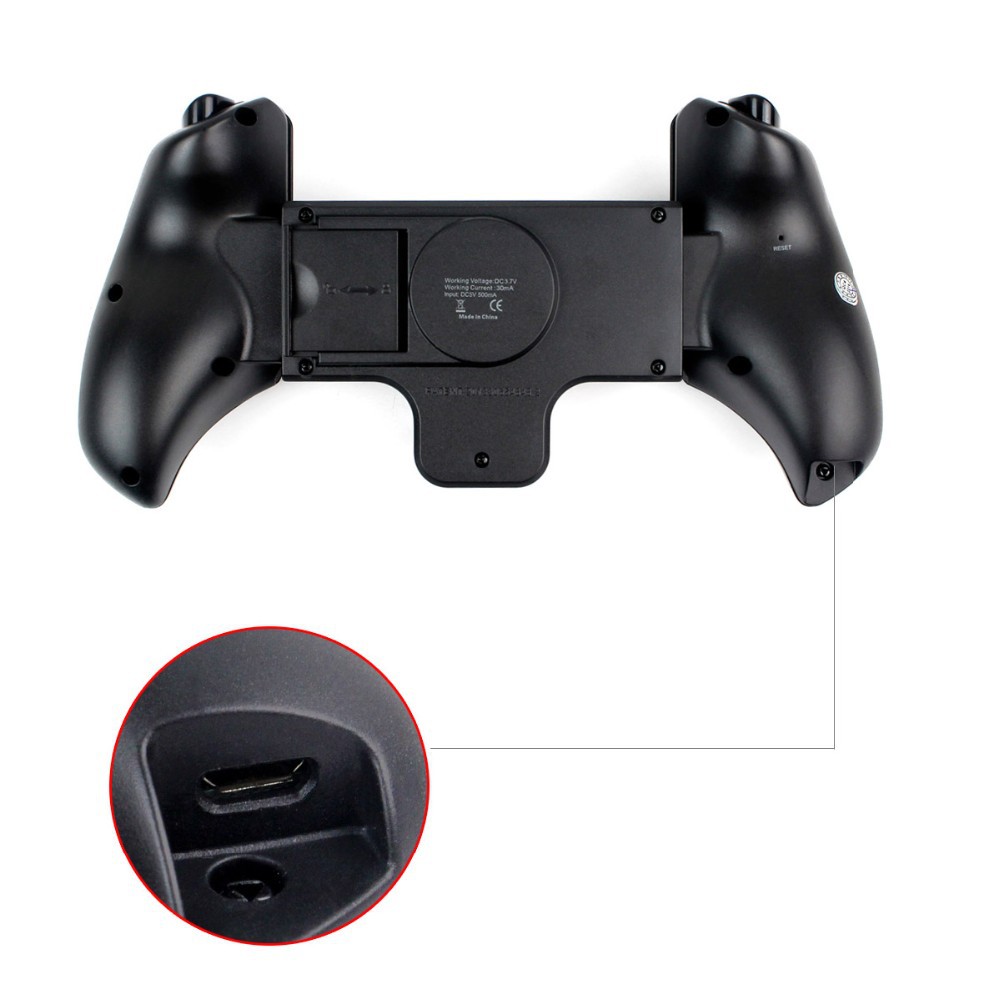
5. Working voltage: DC3.7V
6. Working current: 30mA
7. Input: DC5V 500mA
Game support description
Under Android system, it supports the vast majority of games and simulator games(such as MC4, Wild blood, Dungeon Hunter, Zombie, FC simulator
GBA , arcade mulator, SFC simulator, N64 mulator, Shadowgun, Sonic CD, Cordy, Soulcraft, Zenonia4, 9 Innings2013, Riptide,etc.)
Download method of games that are compatible: Enter itunes and App Store to search for iCade. The handle can be compatible with the vast majority of games, such as Gunman Clive, Helium Boy, League of Evil League of Evil2, Muffin Knight Free Stardash, Temple the Run and so on.
User Manual
|
A |
B |
X |
Y |
|
Keyboard Mode |
iCade Mode |
GamePad Mode |
IPEGA Game Centre/SPP Mode |
X.GamePad Mode: Only Android 3.2+ version supports this mode. When the handle is turned off, first press the X key, then press the HOME key. Bluetooth LED indicator
flash. Then handle enter into the pairing mode and turn on the phone and search Bluetooth devices Ipega Extending Game Controller for pairing. LED indicator light is on after the
sucessful pairing.
A. Keyboard Mode:(For Android system and support various types of simulators) When the handle is turned off, first press the A key, then press the HOME key. The Bluetooth LED indicator
flash and the handle enter into pairing mode. Turn on the phone and search Bluetooth devices Ipega Extending Game Controller for pairing. LED light is on after successful pairing.
B.iCade modes: When the handle is turned off, first press the B key, then press the HOME key. The Bluetooth LED light indicator flash, and the handle enter into the pairing mode. Turn on the phone
and search Bluetooth devices Ipega Extending Game Controller for pairing. LED light indicator is on after successful pairing.
Y key has two modes: 1. SPP Mode(for systems with virtual keys of the game), 2. iPega gaming desktop(see appendix)
1. SPP Mode: When then handle is turned off, first press the Y key, then press the HOME key, LED lights flash and the handle enter into the pairing mode, if the pairing is successful, the LED light indicator
is keeping bright. The handle is in the SPP mode; SPP mode requires corresponding Android APP software to complete the relevant key mapping function.

SPP Use:
1 Go to Settings → Language and input → Select Input Method "GHTouch IM"
2 Open the application "GHTouch" → Choose device "ipega Extending Game Controller" → check "virtual screen buttons"
→ Select Input Method "GHTouch IM" → The device will automatically connect with the handle, after the
connection is completed , the LED indicator light
3 After entering the game, press the volume up on the device or handle "Select" button, the button icon onto
the screen corresponding to the position (Note: Double-click the icon to set the size), press return or click on
About input method setting: Using the controller to play game should set the phone or notebook input method to be default as English language input (For the ios system, be sure to switch the input method, and then pairing. If not, the handle does not work properly.)
Charging controller: Accessing the controller to 5V power supply for charging (PC device or mobile phone power adapter). In the process of charging, the charge indicator light of handle is orange and LED is off after fully charged.
Switch on/off the controller: Press "HOME" button for 3 seconds until the Bluetooth LED is off, it means shutdown is successful. If the phone is not unpair connection when controller shutdown. Just do it again
Press the "HOME" button for about five seconds, until the LED red light flashes slowly. It means that the handle is turned on (the default the last boot mode), the boot handle will automatically paired with the phone connection. If the connection fails, the handle will automatically shut down.
Connect the PC: Open the device’s Bluetooth PC program, and select the "X, A" in either mode can be paired with(and does not have a Bluetooth PC devices need to use the Bluetooth receiver).
Note: To change the controller function mode, please turn off the controller firstly and cancel the bluetooth pairing , then in accordance with the operation mode to replace the steps.
Package contents
1x Ipega Wireless Bluetooth Controller
1x User Manual
1x USB Charging cable
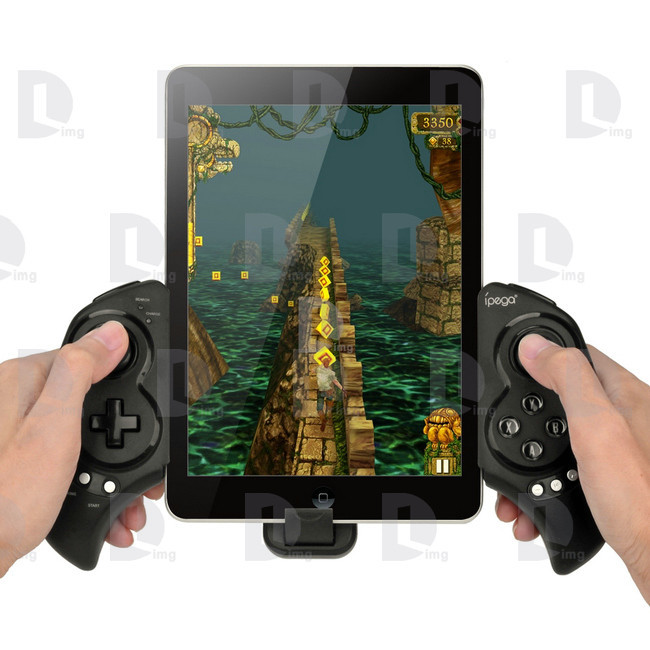


Ipega PG-9021 Wireless Bluetooth Gaming Game Controller Gamepad Joystick for Android iOS Phone Tablet PC Mini PC Laptop TV BOX
Modle:PG-9021
Feature:
Kindly Note: This game controller don't support MTK CPU smarphone
Introduction
This product is a new wireless Bluetooth controller which supports different Android/ IOS/ PC games.
-Exclusive gaming application platform, the classic hand travel under control (ipega game lobby only for Android platform).
-Built-in lithium battery. After charging, it can be sustainable for 20 hours. Safe and stable.
-With the telescopic stand, the phone can be put in the stand (maximum support for 6-inch mobile phone). Easy for playing games.
- With "volume +, -,"last ","next ""Play / Pause", total 5 multimedia function keys (This function is imcompatible with Y key mode.)
-Bluetooth 3.0 wireless transmission can support 6-8 meters wide range of control from the operation.
-User-friendly software designed to enter the power saving mode with no connection state.
-Support Android 3.2, iOS 4.3 above system.
-Compatible with iPod/iPhone/iPad as well as the vast majority of Android tablet PCs.
Game Support Description
Under Android system, it supports the vast majority of games and simulator games (such as MC4, Wild blood, Dungeon Hunter, Zombie, FC simulator, GBA e-mulator, arcade e-mulator, SFC simulator, N64 e-mulator, Shadowgun, Sonic CD, Cordy, Soulcraft, Zenonia4, 9 Innings 2013, Riptide GP, etc.)
Download method of games that are compatible: Enter itunes and App Store to search for "iCade". The handle can be compatible with the vast majority of games, such as Gunman Clive, Helium Boy, League of Evil League of Evil 2, Muffin Knight Free Stardash, Temple the Run and so on.
User Manual
X.GamePad Mode: ;">(Only Android 3.2 + versions supports this mode ;">) when the handle turn-off, first press the "X" key, then press the HOME key, Bluetooth LED indicator flash, the handle enter into the pairing mode, turn-on the phone and search for Bluetooth devices "ipega classic gamepad" and pairing, if the pairing is successful, the LED indicator will be bright, the
handle will be in the GamePad mode.
A.Keyboard Mode: (suitable for Android system) When the handle turn-off, first press the "A" key, then press the HOME key, the Bluetooth LED indicator flash, the handle enter into pairing mode, turn-on the phone and search for Bluetooth devices "ipega classic gamepad" and pairing, if the pairing is successful, the LED indicator will be bright, the handle will be in the keyboard mode.
B.iCade modes: (suitable for IOS system) When the handle turn-off, first press the "B" key, then press the HOME key, the Bluetooth LED indicator flash, the handle enter into the pairing mode, turn-in the phone and search for Bluetooth devices "ipega classic gamepad" and pairing, if it is success, the LED light will be bright, the handle will be in the iCade mode.
About input method setting: Using the controller to play game should set the phone or notebook input method to be default as English language input (For the iOS system, be sure to switch the input method, and then pairing. If not, the handle does not work properly.)
Charging controller: When the controller is a low battery condition, the charge indicator is start blinking, please accessing the controller to 5V power supply for charging(PC device or mobile phone power adapter). Process of charging, the charge indicator of the handle is Orange and keep long bright, saturated power LED goes.
Switch on/off the controller: Press "HOME" button for 3 seconds until the Bluetooth LED is off, it means shutdown is successful. If the phone is not unpaired connection when controller shutdown. Just do it again
Press the "HOME" button for about five seconds, until the LED red light flashes slowly. It means that the handle is turned on (the default the last boot mode), the boot handle will automatically paired with the phone connection. If the connection fails, the handle will automatically shut down.
Connect the PC: Open the device's Bluetooth PC program, and select the "X, A" in either mode can be paired with (and does not have a Bluetooth PC devices need to use the Bluetooth receiver).
Note: To change the controller function mode, please turn off the controller firstly and cancel the Bluetooth pairing, then in accordance with the operation mode to replace the steps.
The Reset Switch: When the controller can't operate normally, please use the papperclip to touch the reset switch on the left corner of the grip back when the grip cannot shut down or crash.
Package Includes:
1x Bluetooth Controller
1x Charging cable
1x Manual


Modle:PG-9025

Introduction
This product is a new wireless Bluetooth controller which supports different android/ ios/ PC games.
1.It can be used when connected with the Bluetooth mobile phone and without any drivers.
2.Exclusive gaming application platform, the classic hand travel under control (ipega game lobby only for Android platform).
3.Built-in lithium battery (380mAh). After charging, it can be sustainable for 20 hours. Safe and stable.
- With the telescopic stand, the phone can be put in the stand (maximum support for 5.5-inch mobile phone). Easy for playing games.
- With "volume +, -,"last ","next ""Play / Pause" , total 5 multimedia function keys (This function is imcompatible with Y key mode.)
6.Bluetooth 3.0 wireless transmission can support 6-8 meters wide range of control from the operation.
7.User-friendly software designed to enter the power saving mode with no connection state.
8.Support android 3.2, ios 4.3 above system.
9.Compatible with iPod/iPhone/iPad as well as the vast majority of android tablet PCs.


Game Support Description:
Under Android system, it supports the vast majority of games and simulator games (such as MC4, Wild blood, Dungeon Hunter, Zombie, FC simulator, GBA e-mulator, arcade e-mulator, SFC simulator, N64 e-mulator, Shadowgun, Sonic CD, Cordy, soulcraft, Zenonia4, 9 Innings 2013, Riptide GP, etc.)
Download method of games that are compatible: Enter itunes and App Store to search for "iCade". The handle can be compatible with the vast majority of games, such as Gunman Clive, Helium Boy, League of Evil League of Evil 2, Muffin Knight Free Stardash, Temple the Run and so on.


User Manual
X.GamePad Mode: Only Android 3.2 + versions supports this mode. When the handle is turned off, first press the "X" key, then
press the HOME key. Bluetooth LED indicator flash. The handle enter into the pairing mode and turn on the phone and search for
Bluetooth devices "ipega media gamepad controller" and pairing. If the pairing is successful, the LED indicator will be bright and the
handle will be in the GamePad mode.
A.Keyboard Mode: When the handle is turned off, first press the "A" key, then press the HOME key. The Bluetooth LED indicator
flash and the handle enter into pairing mode. Turn on the phone and search for Bluetooth devices "ipega media gamepad controller" and
pairing. If the pairing is successful, the LED indicator will be bright and the handle will be in the keyboard mode.
B.iCade modes: When the handle is turned off, first press the "B" key, then press the HOME key. The Bluetooth LED indicator
flash, and the handle enter into the pairing mode. Turn-in the phone and search for Bluetooth devices "ipega media gamepad controller"
and pairing. If it is successful, the LED light will be bright and the handle will be in the iCade mode.
Download and use the ipega game lobby:Login the official forum: http://www.aipaige.com and download ipega game lobby APK file
1 Switch on the application "ipega game lobby" and then click to enter my device (Fig. 1)
2 When the handle is turned off, first press the "Y" key, then press the HOME button. The LED indicator light flash and the handle enter into the pairing state
3 Switch-in the Bluetooth, click Add handle search → "ipega media gamepad controller" → click interface to bind to jump to handle connection test program handles the connection is successful (Figures 1, 2)
4 Click Settings → Click Bitgames IME input method and check "Bitgames IME" → Select Input Method "Bitgames IME" → click Finish (Figure 3,4)


Y.SPP Mode:When the handle is turned off, first press the "Y" key, then press the HOME key. LED lights flash and the handle
entre into the pairing mode. If the pairing is successful, the LED indicator is keeping bright. The handle is in the SPP
mode; SPP mode requires corresponding Android APP software to complete the relevant key mapping function.
SPP use:
1 Go to Settings → Language and input → Select Input Method "GHTouch IM" (Figure 1)
2 Open the application "GHTouch" → Choose device "ipega media gamepad controller" → check "virtual screen buttons"
→ Select Input Method "GHTouch IM" → The device will automatically connect with the handle, after the
connection is completed , the LED indicator light (Figures 2, 3)
3 After entering the game, press the volume up on the device or handle "Select" button, the button icon onto
the screen corresponding to the position (Note: Double-click the icon to set the size), press return or click on
the device handle "Select", icon hidden, complete the setup.


About input method seting: Using the controller to play game should set the phone or notebook input method to be default as English language input (For the ios system, be sure to switch the input method, and then pairing. If not, the handle does not work properly.)
Charging controller: Accessing the controller to 5V power supply for charging (PC device or mobile phone power adapter). In the process of charging, the charge indicator of the handle is orange and LED switched off when charging is completed.
Switch on/off the controller: Press "HOME" button for 3 seconds until the Bluetooth LED is off, it means shutdown is successful. If the phone is not unpair connection when controller shutdown. Just do it again
Press the "HOME" button for about five seconds, until the LED red light flashes slowly. It means that the handle is turned on (the default the last boot mode), the boot handle will automatically paired with the phone connection. If the connection fails, the handle will automatically shut down.
Connect the PC: Open the device's Bluetooth PC program, and select the "X, A" in either mode can be paired with(and does not have a Bluetooth PC devices need to use the Bluetooth receiver).
Note: To change the controller function mode, please turn off the controller firstly and cancel the bluetooth pairing , then in accordance with the operation mode to replace the steps.
Attention
- When the controller can't operate normally, please use the papperclip to touch the reset switch on the left corner of the grip back when the grip cannot shut down or crash.
- Please do not put this product in wet or hot place for storage.
- Do not hit, beat, piercing or attempt to disassemble the product to avoid unnecessary damage.
- Do not discard the built-in battery with garbage.
- Do not use near fire or other heat source to recharge the battery.


=====================================================
=====================================================
Ipega PG-9017S Wireless Bluetooth Game Controller Joystick For iPhone 4/4S/5/5S Samsung S4/S3/Note3 ,Android/iOS Phone
Model:PG-9017S
Product Description
Introduction
This product is a new design wireless Bluetooth controller and support different android/ ios/ PC and etc games.
1.It can be used when connected with the Bluetooth mobile phone and without any drivers.
2.Built-in 380mAh lithium battery, after charging can be sustainable long-term use, safe and stable.
3.The phone can be placed on the telescopic holder, convenient for playing games.
4.Bluetooth 3.0 wireless transmission can be 6-8 meters wide range of control from the operation.
5.User-friendly software designed to enter the power saving mode with no connection state.
6.Compatible with iPod/iPhone/iPad as well as the vast majority of android tablet PCs
Game Support Description:
Note: The compatibility problem exist on the part of the game of Android 4.0 system. It is recommended to use the stable version of the system
Support of the vast majority of the simulator as well as racing and tower defense type of game under the android system.(ie FC simulator, GBA simulator, arcade e-mulator, SFC simulator, N64 e-mulator, Shadowgun, Sonic CD, Cordy, soulcraft, Zenonia4, 9 Innings 2013, the Riptide GP, Angry Birds, Fruit Ninja, the Airbag Frank 3D Plantsvs. Zombies, Gunsn Glory etc.)


=====================================================
=====================================================
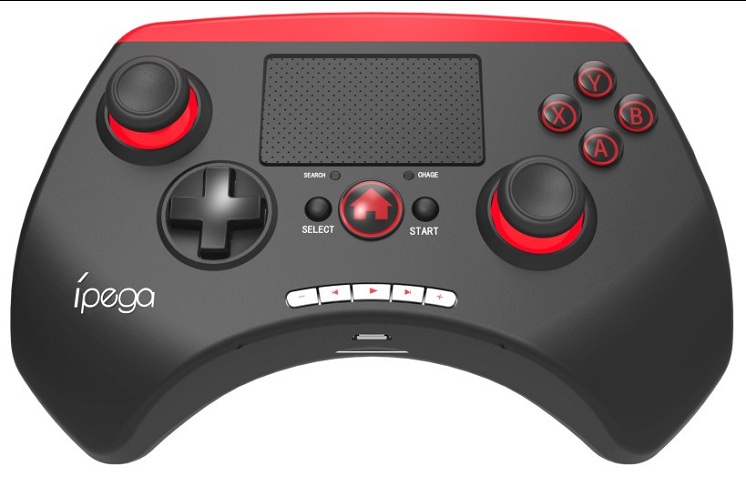
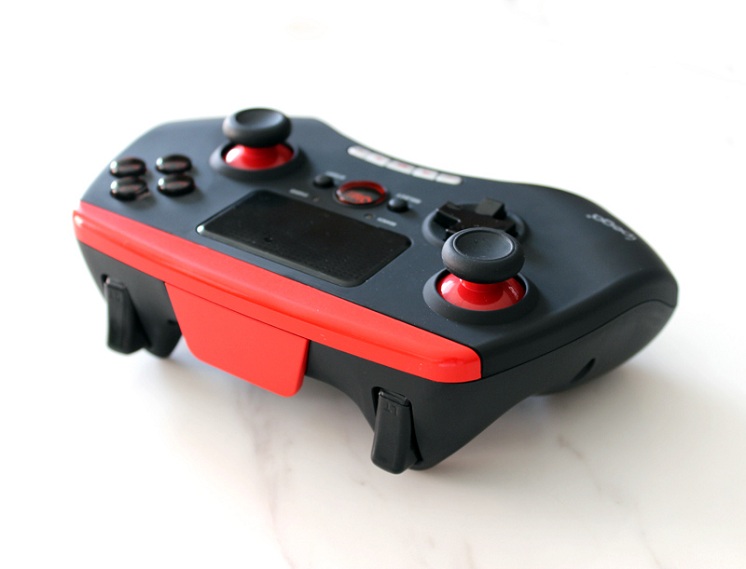
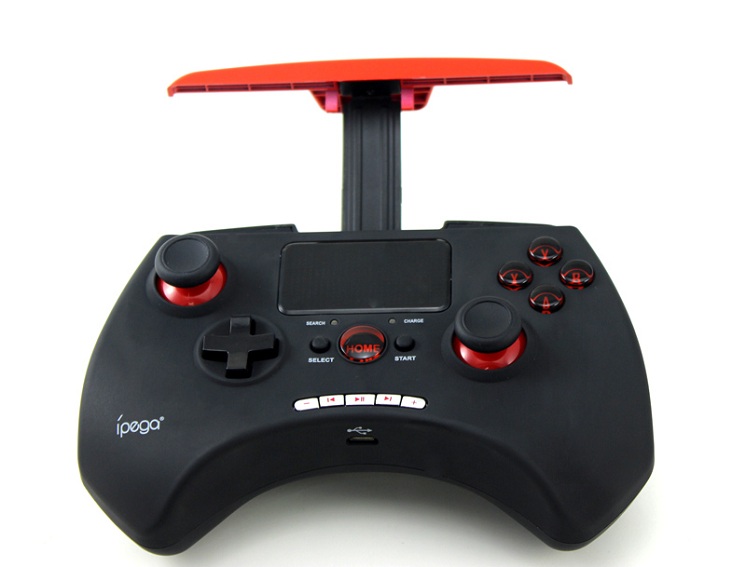
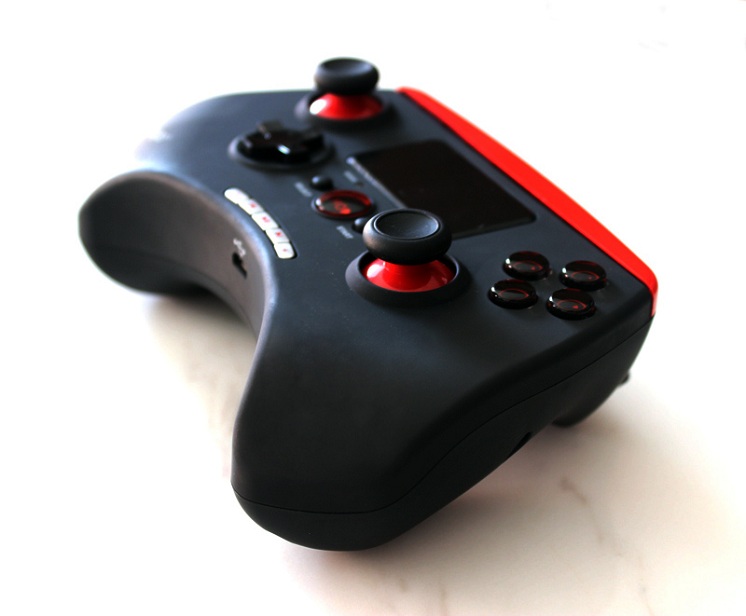
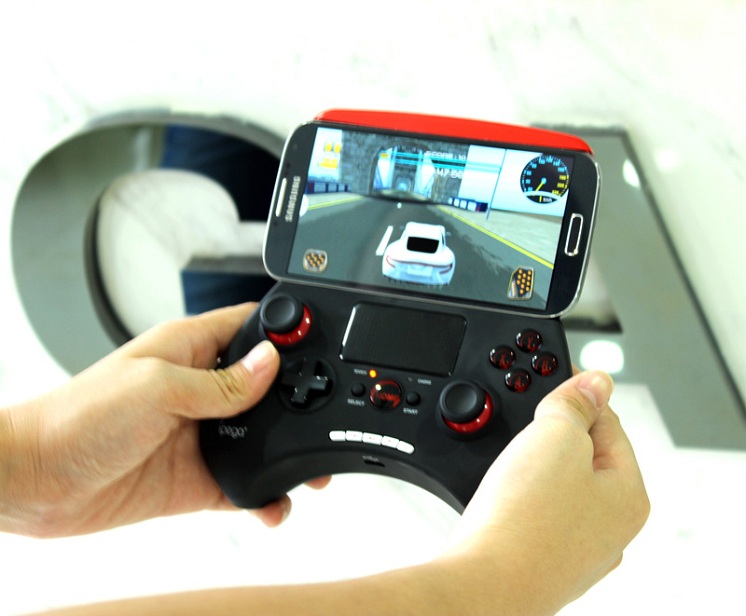
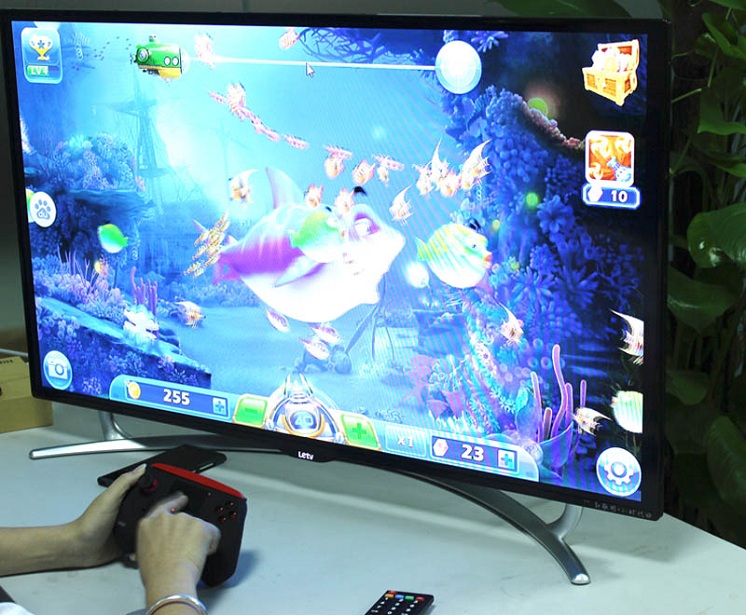
Ipega PG-9028 Wireless Bluetooth Unique Game Controller With Touchpad Support Android/iOS Phone Android TV/TV Box
Model:PG-9028
Specification:

=====================================================
=====================================================
Ipega PG-9033 Wireless Bluetooth Unique Game Controller With Touchpad Support Android/iOS Phone Android TV/TV Box
Model:PG-9033
Introduction:
Whether while travelling or simply at home alone, sometimes all we need is quick entertainment. Without much hassle, our electronic devices can support a vast majority of games available on the app store. The bad news is, too much gaming on your device can damage it in the long run – especially if it involves a multi touch screen. Some adventure and simulator games also require more than mere touches. If you are a hardcore gamer with these issues on your hand then this item is perfect for you.
Main Feature:
- All of our items are Brand New
- Suitable with for iOS, Android, and PC
- Supports Bluetooth
- Supports vast majority of big games and simulator games
- Telescopic stand for 6 inch phones
- Long battery life (up to 20 hours)
- User-friendly interface
Specification:
- Brand: iPega
- Model: PG-9033
- Battery: Built-in Lithium 380mAh
- Bluetooth: V3.0
- Wired/Wireless: Wireless
- Operating range: 6-8 meters
- Charging time: 2 hrs
- Working time: 20 hrs
- Standby time: 100 hrs
- Compatible Models: Smartphone, Tablet, iPod and PC (Up to 6" devices, bigger devices can be used, but only in portrait mode.)
- Supported OS: Android 3.2,for iOS 4.3 or above
- Compatible System: Windows XP / Win7 / Win8, Android TV box, Android TV
The Game Supports:
Compatible with the vast majority of games can handle, such as Gunman Clive, Helium Boy, League of Evil, League of Evil 2, Muffin Knight, Stardash, Temple Run, etc. Mouse Mode compatible games: as Fruit Ninja, Pleants VS Zombies, Flappy Bird, Angry Birds, Sky Force, Airattack HD, Cut the Rope, etc.
Instructions:
1) GamePad Mode :( applicable to Android 3.2 or later, supports Android games) in the handle off, first press the "X" key, then press the HOME key, Bluetooth LED lights flash, the handle into pairing status, open the phone Bluetooth search device "PG-9033" pairing, LED indicator light long after the pairing is successful.
2) Keyboard Mode :( for Android system to support all kinds of simulators) in the handle off, first press the "A" key, then press the HOME key, Bluetooth LED lights flash, the handle into pairing status, open the phone Bluetooth search device "PG-9033" pairing, LED indicator light long after the pairing is successful.
3) iCade Mode :( applicable to IOS system) in the handle off, first press the "B" key, then press the HOME key, Bluetooth LED lights flash, the handle into pairing status, open the phone Bluetooth devices search "PG-9033 "pairing, LED indicator light is after successful pairing.
4) Mouse: When using the GamePad or Keyboard mode handles the phone connection is successful, press "Y + HOME" button to switch to mouse mode, this function is performed by three function keys operate: the right stick (control cursor movement), L1 (confirmation), R1 (return); YY key has two modes:. 1.SPP Mode (for systems with virtual keys of the game); 2 Andrews assistant handle (see appendix)
5) SPP Mode :( for Android platform is required in order to use ROOT) in the handle off, first press the "Y" key, then press the HOME button, LED lights flash, the handle into pairing status, pairing after the success of the LED is still flashing, the handle is in SPP mode; SPP mode requires corresponding Android APP software to complete the relevant key mapping function.
SPP use: visit the official forum: http: //www.aipaige.com or download "GHTouch" APK files via two-dimensional code
1. Go to Settings → Language and input → Select input method "GHTouch IM" (Figure 1)
2. Open the application "GHTouch" → Select Device "PG-9033" → check "virtual screen buttons" → select the input method "GHTouch IM" → device automatically connects to the handle, the connection is completed after the LED indicator light
3. After entering the game, press the volume increase or handle the device "Select" button, the button icon onto the screen corresponding to the location (Note: Double-click the icon to set the size), Press to return the device or by the handle "Select", the icon is hidden, to complete the setup.
6) About input settings: Use the handle when the game needs to be the default phone or tablet input method for text input (in iOS system, be sure to switch the input method, and then pairing, otherwise the handle does not work properly).
7) Charging Handle: The handle access 5V power supply for charging (such as a PC or mobile device power adapter), the charging process, the charge indicator is orange handle and maintain long bright LED goes off after fully charged;
8) The switch operating handle: keep pressing "HOME" button for about three seconds, until the Bluetooth LED is off, that handle the shutdown success; after the handle off, if the phone is not connected to cancel pairing, simply press again "HOME" button, Bluetooth LED light from slow flash, it means that the handle is turned on (the default boot mode last time), boot handle automatically paired with the mobile phone connection, if the connection fails, the handle will automatically shut down.
9) Connection PC: PC Bluetooth device program open, handle selecting the "X, A" in either mode can be paired (not Bluetooth-enabled PC device uses Bluetooth receiver)
Note: To change the handle function mode, you must first turn off the handle, and cancel Bluetooth pairing, and then steps on the code to be replaced in accordance with the model.
Attention:
1) When the handle is not operating properly (such as the handle can not be shut down or crashes, etc.), you can use the lower left corner of the back of a paper clip tap handle reset switch reset;
2) Please do not put this product in wet or hot place to store;
3) Do not knock, beat, puncture, or attempt to disassemble the product, in order to avoid unnecessary damage to the product;
4) The product built-in battery, do not discard together and garbage;
5) Do not use near fire or other heat sources on the handle for charging.
Packaging:
- 1 x PG-9033 Bluetooth Controller
- 1 x USB Charging Cable
- 1 x Use Manual


=====================================================
=====================================================
Ipega PG-9037 Wireless Bluetooth Unique Game Controller With Touchpad Support Android/iOS Phone Android TV/TV Box
Model:PG-9037
Introduction:
This product is a wireless Bluetooth handle a new function, such as support for Android/ios/PC different platform game.
- no need to load any drive, use and mobile phone Bluetooth pairing can be;
- exclusive game application platform, the classical Mobile Games under control(Android handle assistant applies only to Android system platform);
- the built-in lithium battery (380mAh), charging the sustainable use of 20H, the security and stability;
- with the telescopic bracket, mobile phone or tablet computer can be placed on the bracket (the maximum supported 6 inch mobile phone);
-Bluetooth 3 wireless transmission function, which can operate in 6-8 m wide control range;
-Software design of humanization, without connection state to enter power-saving mode;
- support Android 3.2, IOS 4.3 or above system;
- compatible WinXP/Win7/Win8, Android TV box, Android TV;
Support the game shows:
Support for most large game and simulator game Android system (such as MC4, Wildblood, Dungeon Hunter, Zombie, FC simulator, for GBA simulator, arcade simulator, SFC simulator, N64 simulator, Shadowgun, Sonic, CD, Cordy, Soulcraft, Zenonia4,9,Innings 2013, Riptide GP)
The IOS system is compatible with the game download mode: can enter the iTunes in the store (App Store) in the search for "iCade", the vast majority of games are compatible to handle, such as Gunman Clive, Helium Boy, League of Evil League of Evil 2, Muffin Knight Free Stardash, Temple the Run.
Package Include:
1 x ipega PG-9037 Gamepad
1 x USB cable


