


Application Instroduction:
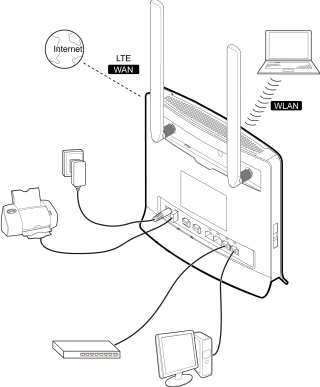
1. Insert the SIM card into the SIM card slot.
2. Connect the power cord to the modem and the wall socket.
3. Turn on your computer and any other devices modem LAN and USB ports.
4. Turn on your modem POWER button.
CONNECTING PC TO THE MODEM WLAN CONNECTION
1. Turn on your modem POWER button.
2. Make an indicator that the WLAN is enabled. To activate the WLAN feature on and off by holding the WLAN button for more than 3 seconds.
3. Select your network from the list of wireless networks, the SSID name is the same as the name of your modem and press connect. Enter the network security key.
Note: * The SSID and network security key can be found on the label on the back of the modem.
* You can review and change the WLAN security settings for the network-management page under General Settings> WLAN Settings > Security.
4. If the PIN code request is active, log network management page (http://192.168.1.1 ) and enter the correct PIN code in the field provided.
Network Management Page Opening
1. Make sure that your flash drive and a computer or device the connection is established correctly.
2. Start a web browser and enter the address http://192.168.1.1
3. If the PIN code request is active, asking the network management side of it. The default PIN is 0000.
Light Indicators:
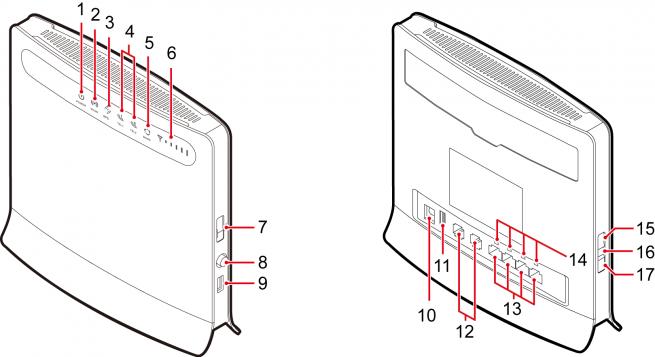
light Mode light Description
MODE Blue This light is a constant blue, when the modem is connected to the 4G network, but no data is transferred.
The indicator light flashes blue when data is being transferred.
MODE Green This indicator light is constantly green when the modem is connected to a 3G network, but no data is transferred.
The indicator light flashes Green when data is being transferred.
MODE Orange This light is constantly orange when the modem is connected to a 2G network, but no data is transferred.
The indicator light flashes orange when data is being transferred.
MODE White This light will flash white when the modem to connect to the wireless network.
MODE Red This light is constantly red when the modem cannot connect to a wireless network or modem is not a wireless
network.
MODE Mulberry This light is on when the SIM card is not recognized, or PIN has not been or PIN authentication fails.
WLAN On WLAN function is enabled.
LAN1-LAN4 On This light is on when the computer or other device is connected to the LAN port.
SIGNAL On More bars are lit, the stronger the wireless signal.
Sales Package Included:
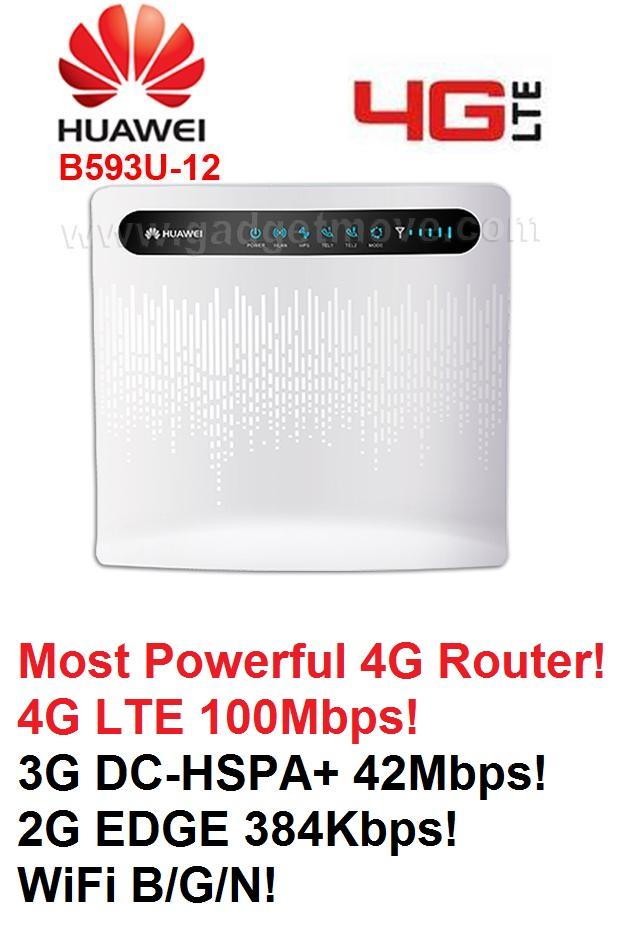
1 X Huawei B593U 4G router
1 X Power Adapter
1 X LAN Cable