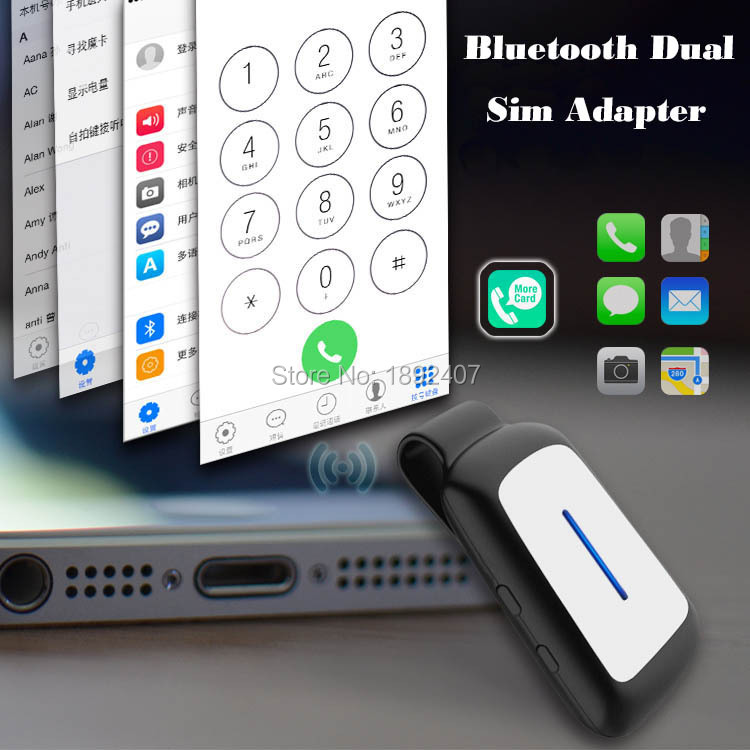
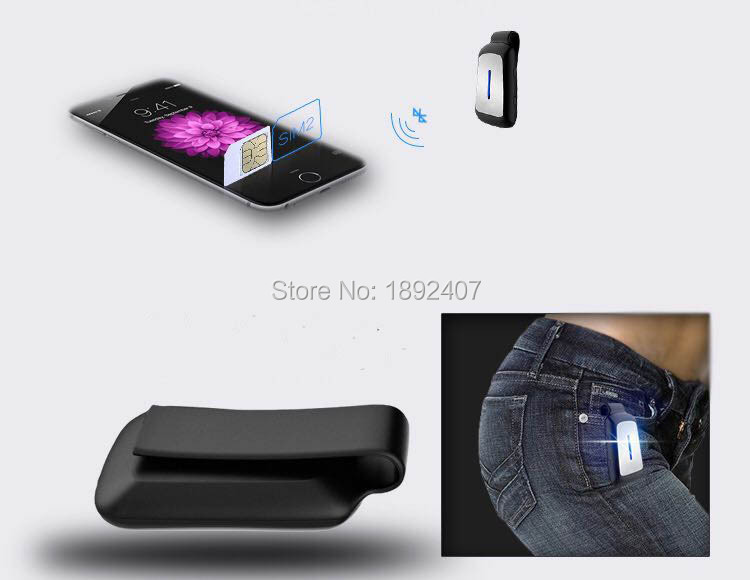
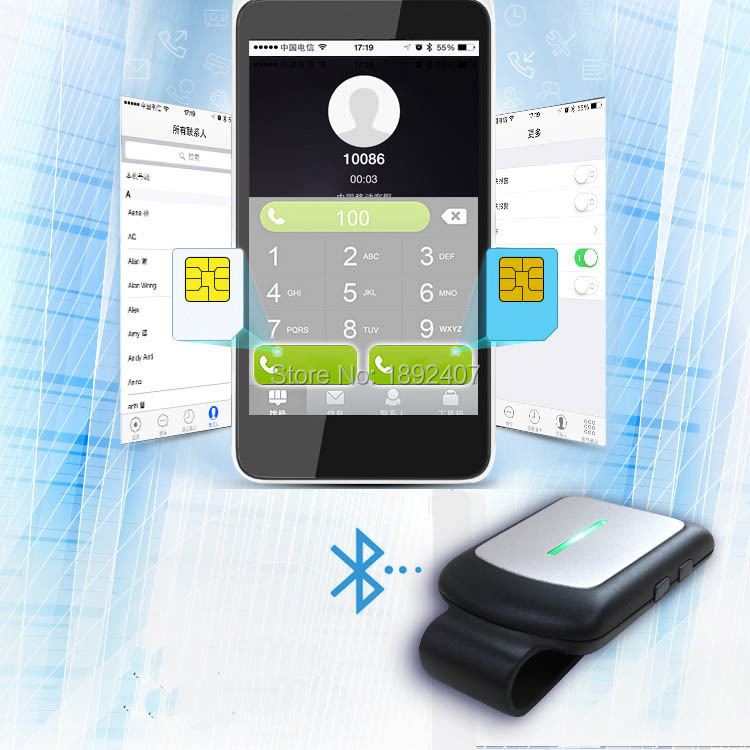
New Bluetooth Dual SIM Cards Adapter with Clip Expansion Micro SIM Card Slot for iphone 5 / 5s / 6 ipad Wholesale !#!amp!*! Retail



Description
Before using, kindly confirm below issues:
1. Your iOS devices’ Bluetooth Standard is Bluetooth 4.0. (iPhone 5+)
2. Your devices’ iOS version is 7.0+.
3. Your devices’ Bluetooth is turned ON.
4. You have access to Apple App Store, with internet connection (GPRS, 3G, 4G, Wifi) and your
Apple ID.
5. This AppPhone supports GSM band only, for phone call !#!amp!*! SMS. Do not support network data.
App Download/Install
Type in “morecard” in App Store, and search for below App to install on your devices.
( Since the APP is being processed to APP Store ,need some times for approval ,so please download the APP from the site :http:pgyer.com/tedcall )
Note:
1. On iPad, please switch to iPhone App searching menu.
2. To ensure App run properly, please enable App to access related permissions: Notification,
Contacts Access, Bluetooth Connection etc.
Connect iPhone !#!amp!*! Disconnect Alarm
1. Before connection, please make sure iPhone’s Bluetooth is turned on.
2. Please insert Micro SIM card before pairing. Do not insert after entering Pairing.
3. Long press Pairing button 5 seconds to enter Pairing Mode, Red !#!amp!*! Green LED flashing to
indicate.
4. Open the App, iPhone will search !#!amp!*! auto connect AppPhone nearby, will Beep to indicate
connected.
You can check connecting status in App’s Setting menu:
Green √ means connected;
Red X means disconnected/unconnected.
5. When distance between iPhone !#!amp!*! AppPhone is beyond working range:
Pop up windows will be shown on iPhone, together with notify sound;
AppPhone will Beep to alert, Red !#!amp!*! Green LED will be flashing;
When they become within working range, AppPhone will auto reconnect to iPhone.
Note:
- If AppPhone does not auto connect to iphone, please kill App in background and reopen.
- Please make sure iPhone’s Bluetooth is turned ON.
- When SIM card successfully registered to network, Green LED will be flashing slowly, network
Carrier’s name will be displayed on upper-left corner.
If SIM card failed to register to network (loose contact or bad network coverage), Green LED
will be flashing rapidly, no Carrier’s name displayed on screen. You need to unplug and insert SIM
card !#!amp!*! power off and on AppPhone to retry.
User Login
1. App supports login with third-parties’ account: Phone No., Wechat, QQ, SinaWeibo.
2. The Blocklist you set will be uploaded to Cloud, and auto downloaded to App for new
installation or login.
Note:
1. When login with Phone No., please make sure it’s valid to receive verification code.
2. When login with third-parties’ account, please allow App to access required permissions, and
make sure iPhone is connected to internet(GPRS/3G/4G/Wifi).
Phone Call !#!amp!*! SMS
1. App contains SMS, Recents, Contacts and Keypad UI. Select each UI for phone call !#!amp!*! SMS
operations.
2. App does not support Contact Edit. Please go to iPhone’s Contact to edit.
3. Related Contact info will be listed when dial on Keypad. Swipe to select the correct No. for
outgoing calls.
Remote Camera Shutter
1. To enter Remote Camera Shot:
A. Make sure AppPhone is connected to iPhone and within working range.
B. Go to App’s Settings---Camera, to open Camera window.
C. Single press Pairing button to take photo
D. Do not support video shot operation
2. To quite Camera, click X on top right corner.
3. Please allow App to access Camera !#!amp!*! Album.