
SAMSUNG Sound Bar
HW-J355
FREE
Wall Mount Kit (In Packaging)
Optical Cable (In Packaging)


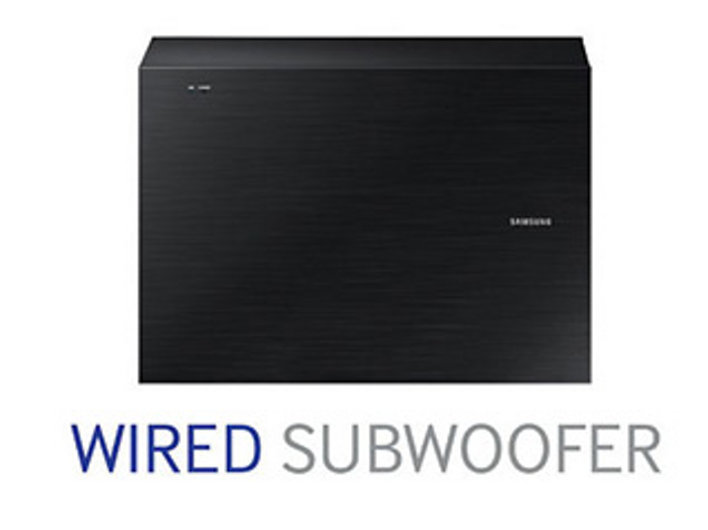
Wired Subwoofer
Feel the action of your favorite movies, shows and sports with dynamic, powerful bass for a lifelike home entertainment experience.
TV Sound Connect™
Enjoy a clutter-free home entertainment system. TV SoundConnect lets you instantly enjoy movies, music, and TV shows with clearer, more impactful sound.*

Bluetooth Power On
Connect wirelessly for one-touch control of your Soundbar from Bluetooth® -compatible devices. Simply select the Soundbar for pairing and power it on automatically for a seamless home entertainment experience.
Samsung Audio Remote App
Control your home entertainment system from your phone or mobile device with the Samsung Audio Remote App.*
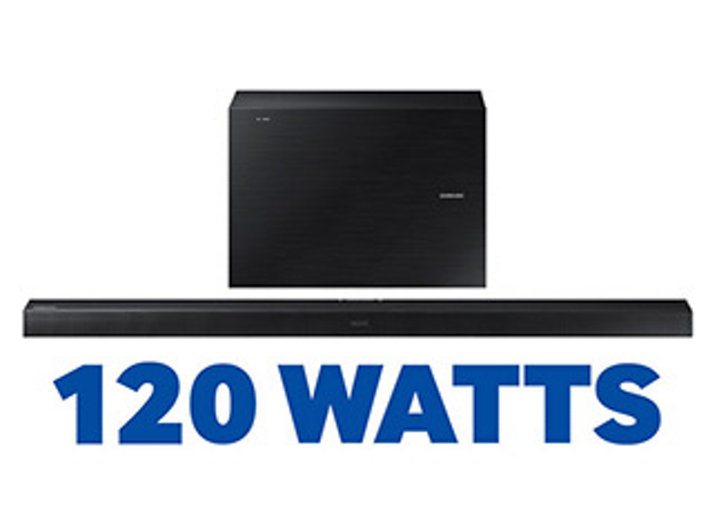
120 Watts Total Power
With 120W total power output, including 60W to the Soundbar and 60W to the Wireless Subwoofer, this Samsung Soundbar allows you to add rich, dynamic audio to your existing home theater setup.
5 1/4" Sealed Bass Reflex Subwoofer
Feel the full power of all your favorite movies and TV shows. Enhance your TV audio with built-in woofers that produce a rich bass sound within the compact Soundbar profile.



Connecting your Soundbar with an Optical Cable
Your Soundbar comes with at least one digital optical (TOSLINK) input. The steps below will walk you through connecting your Sound bar to your TV or external device using an optical digital connection. Before you begin, you will need: - 1 Optical (toslink) Audio cable - any brand will work - Remove any plastic protective casing from your Optical Audio cable - Remove any plastic plugs from the optical port on your external device - Power off your Soundbar, TV and external device(s) before making any connections

To connect your external device(s) follow the steps below:
- Connect one end of the Optical Audio cable to the Optical Digital IN port on the back of the Soundbar.

- Connect the other end of the Optical Audio cable to the Optical Digital OUT port on the back of your TV or external device.
- Remember, when making connections with an Optical cable always go OUT from the device you are connecting to and IN to the Soundbar.
- If you are connecting a TV all audio will output to the Soundbar. Meaning, if you connect all your external sources to your TV, and then connect an optical digital cable out from your TV into the Soundbar, all audio will be sent to the Soundbar and be output through it's speakers.
- If you are connecting an external device like a game console, cable box, satellite receiver, etc., all audio will be sent to the Soundbar, but you must connect a video cable (HDMI, Composite, Component, etc.) from the external device to your TV and set your TV to the input where the external device is connected.
- Power on your external device, followed by your Soundbar and TV. Press the Source button on the Soundbar remote to set your Soundbar to digital in, the front display will read D-IN. If you have no audio, remember to power on your external device(s) and tune your TV to the input where the external device is connected.

(You may have a different remote than the one pictured above. Use the 'Source' or 'Function' button)
Connecting a Bluetooth® Device to your Soundbar
You can connect Bluetooth devices such us a smart phone or tablet to your sound bar to listen to music wirelessly! Before you begin, make sure you have: - A Bluetooth compliant device - Sound bar PIN Code 0000 - Sound Bar remote
Follow the Steps Below to Pair your Device:
- Power on your Soundbar and press the Source button until the front display reads BT.
- The front display will read 'WAIT' for about four seconds, and then 'READY'. This indicates the Soundbar is ready to be paired.

- Next, go to the Bluetooth® menu on the device you are connecting and search for the Soundbar. See examples below:
- If connecting to a smart phone, go to the phone settings and look for Bluetooth®. Enable the Bluetooth® function and then search for Bluetooth® devices in the area. When a list displays, select Samsung Home Audio to connect. Your phone will then prompt you to confirm a generated passkey, verify to pair.
- If connecting to a Tablet, go to the Tablet's Settings and enable the Bluetooth® function. The same menu should list an option to search for Bluetooth® devices in the area. When a list displays, select Samsung Home Audio to connect. Your Tab will then prompt you to confirm a generated passkey, verify to pair.
- If connecting to a PC, locate the Bluetooth® settings and search for Bluetooth® devices. Depending on your OS you may have to complete the Bluetooth® Setup Wizard, if prompted for a PIN enter 0000.
- Once the Soundbar and Bluetooth® device have been paired you can stream music from your device to the Soundbar.
