Overview:
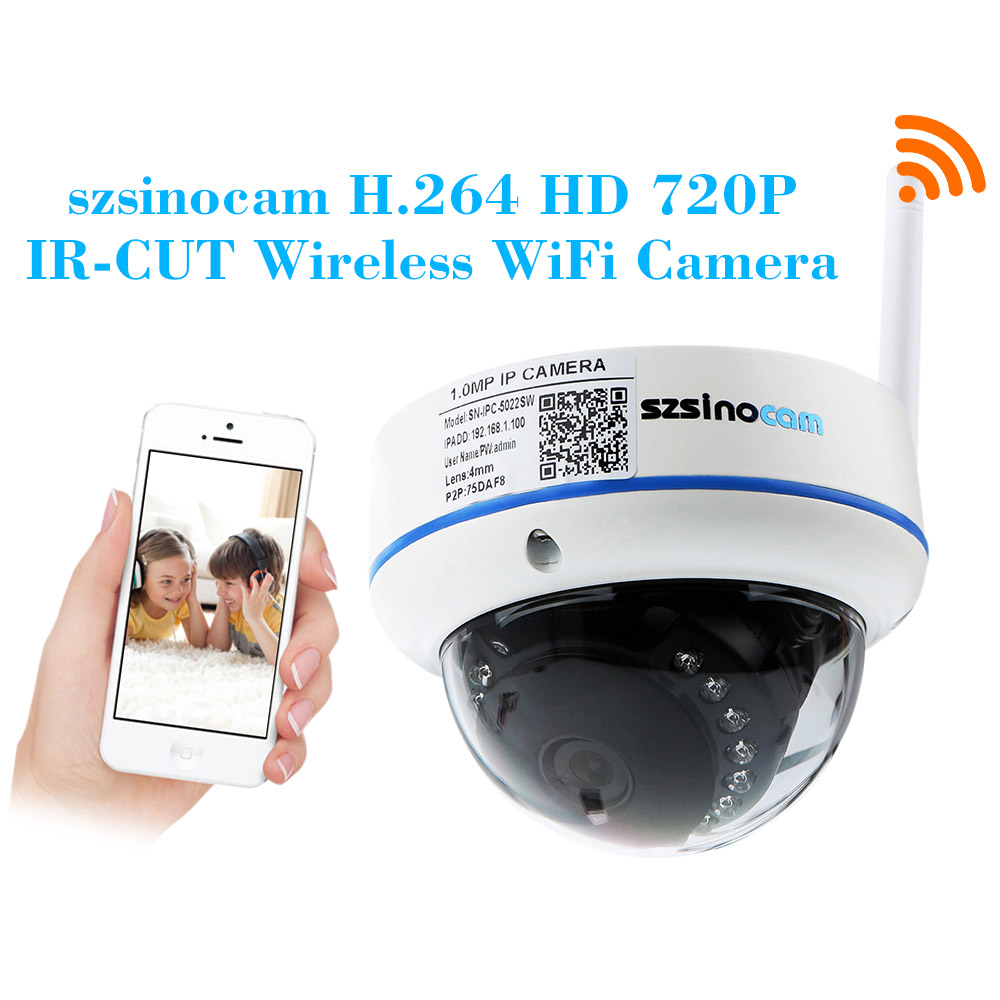
This WiFi camera features P2P plug and play, HD 720P video recording, supporting both android and iOS mobile devices connection. It is also with functions of motion detection and IR night vision, which is widely used at home, shopmarket, office, factory and other places.
Features:
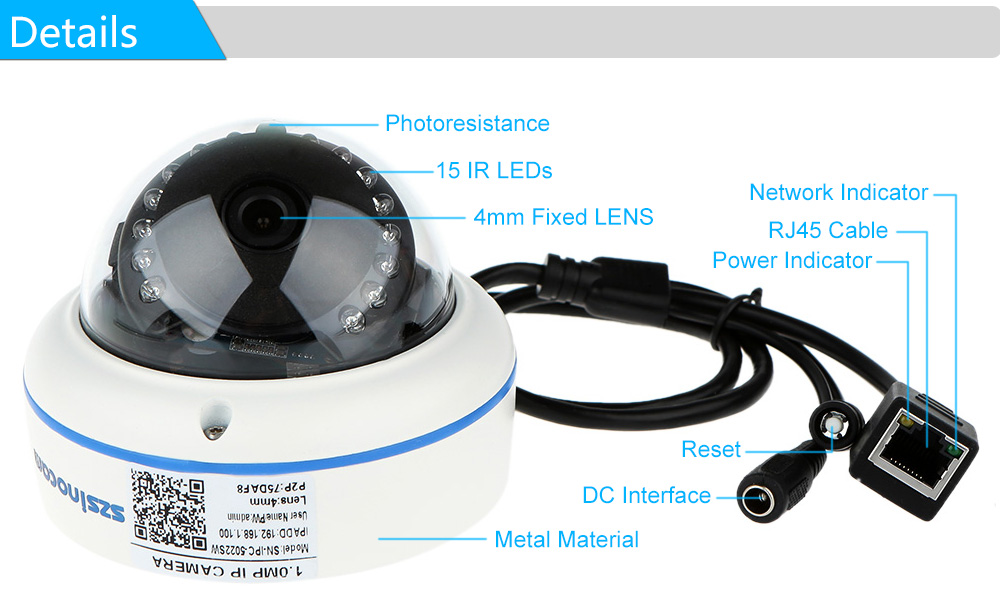
*H.264 HD 720P Megapixel WiFi Camera with 15pcs IR LEDs.
*24 hours day and night monitoring, IR-CUT switch.
*Support multiple platforms, terminals, networks, users management.
*Motion detection, real-time App push notifications and email alert.
*Multiple installation choice, can be mounted on the wall or ceiling.
*Support motion detection/image shielding/image snapshot.
Specifications:
Model: SN-IPC -5022SW
Pixel: 1.0 Mega Pixel, 1280*720
Lens: 4mm fixed lens
Electronic shutter: 1/25s-1/30,000s
Video flame rate?PAL: 1-25 fps, NTSC: 1-30 fps
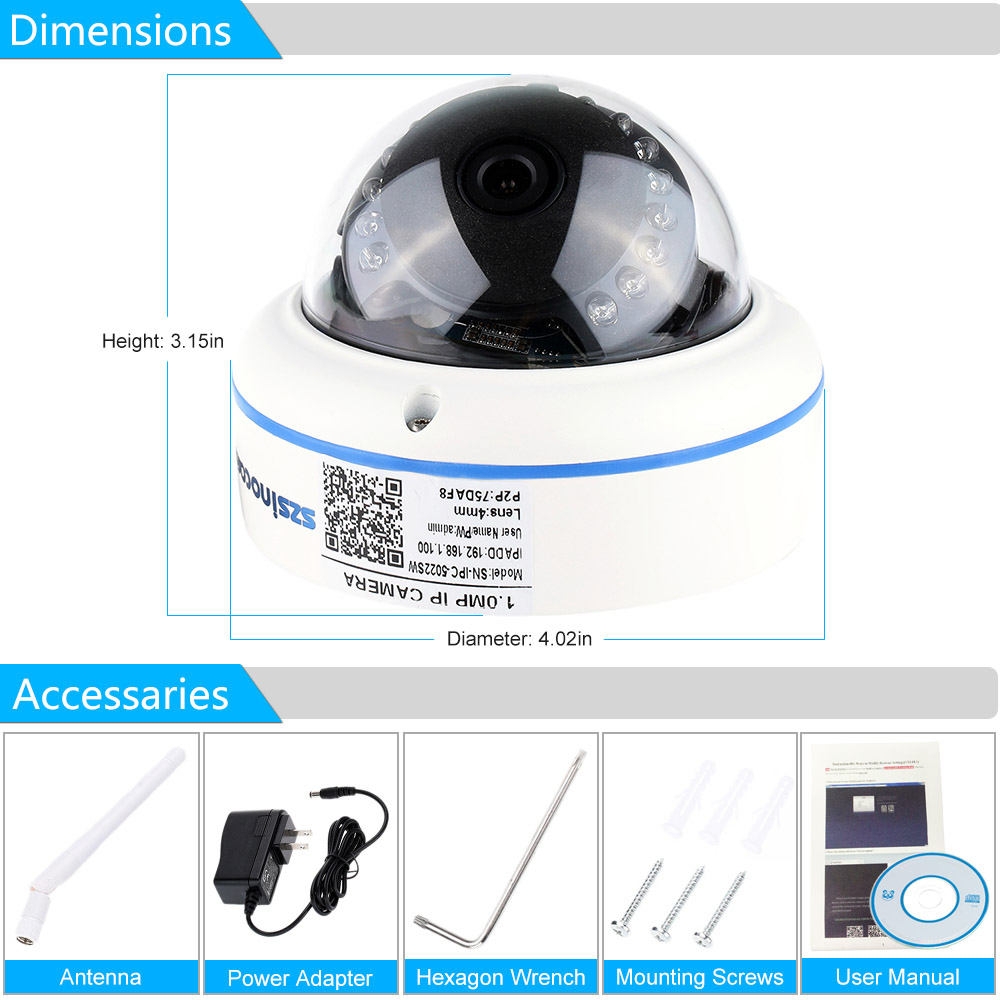
Product Size: Height: 3.15in / 8cm; Diameter: 4.02in / 10.2cm
Package Size: Approx. 5.28*5.12*5.31in / 13.4*13*13.5cm
Package Weight: Approx.1.27lb / 575g
Operation Guide on Phone/Pad APP: https://youtu.be/NPNfkvRXULw
1. Connect camera to power supply and router, and you phone to the router WiFi.
2. Download APP (Camviews or SmartHD P2P) from Google Play or APP store.
3. Run APP to add camera by scan QR code, manual or local search (password: admin).
4. Click to preview, record, playback and do settings.
Operation Guide on PC CMS: https://youtu.be/cwZHXdk2Wi0
1. Connect camera to power supply and router, and you PC to router too.
2. Install CMS client on CD Disk and login (password: null).
3. To add camera by search the IP address (enable DHCP).
4. Click to preview, record, playback and do settings.
Operation Guide on Browser and Set WiFi: https://youtu.be/kGET-C9E4G4
1. Connect camera to power supply and router, and you PC to router too.
2. Input camera IP address on browser bar.
3. Install plugin, then refresh to allow the plugin to load.
4. Login to set WiFi (password: admin).
5. Enable DHCP to search your router SSID.
6. Input password, then click save.
7. Click refresh until you see ^connection success ̄, and above IP address also changed.
8. Unplug network cable, input WiFi IP address to view images on browser, you can also search the WiFi IP address on PC CMS, then add it to preview.
PS: Step5678 also can be set on PC CMS.
Motion Detection and Email Alarm Set: https://youtu.be/0-xUws8pTCs
1. To view the camera on CMS or browser.
2. Enable motion detection alarm and linkage Email.
3. Set detection sensitivity and motion area, then click apply.
4. Enable Email to set Email sender, receiver, server and port.
5. Click mailbox test, you should see ^Test is successful ̄.
6. Set completed, then you will receive Emails when motion detection alarmed.
PS: Step23456 also can be set on PC CMS.
Notice: The camera CMS software does not support MAC OS, and only supports windows OS like xp, win7, win8, win10.
If you want to view the camera on your MAC computer, you can view it on your browser like Safari, Chrome, Firefox by input camera IP,
and the IP address can be easily found on your router when the camera connected to it.
Package List:
1 * IP Camera
1 * US Plug Power Adapter
1 * CD (contain software and detailed manual)
1 * Bag of Screws
1 * User Manual (English)

$$
$$
$$
$$
$$
$$





